📌 What is Aadhaar Card Cropper Online - Print Aadhaar Front Back on A4?
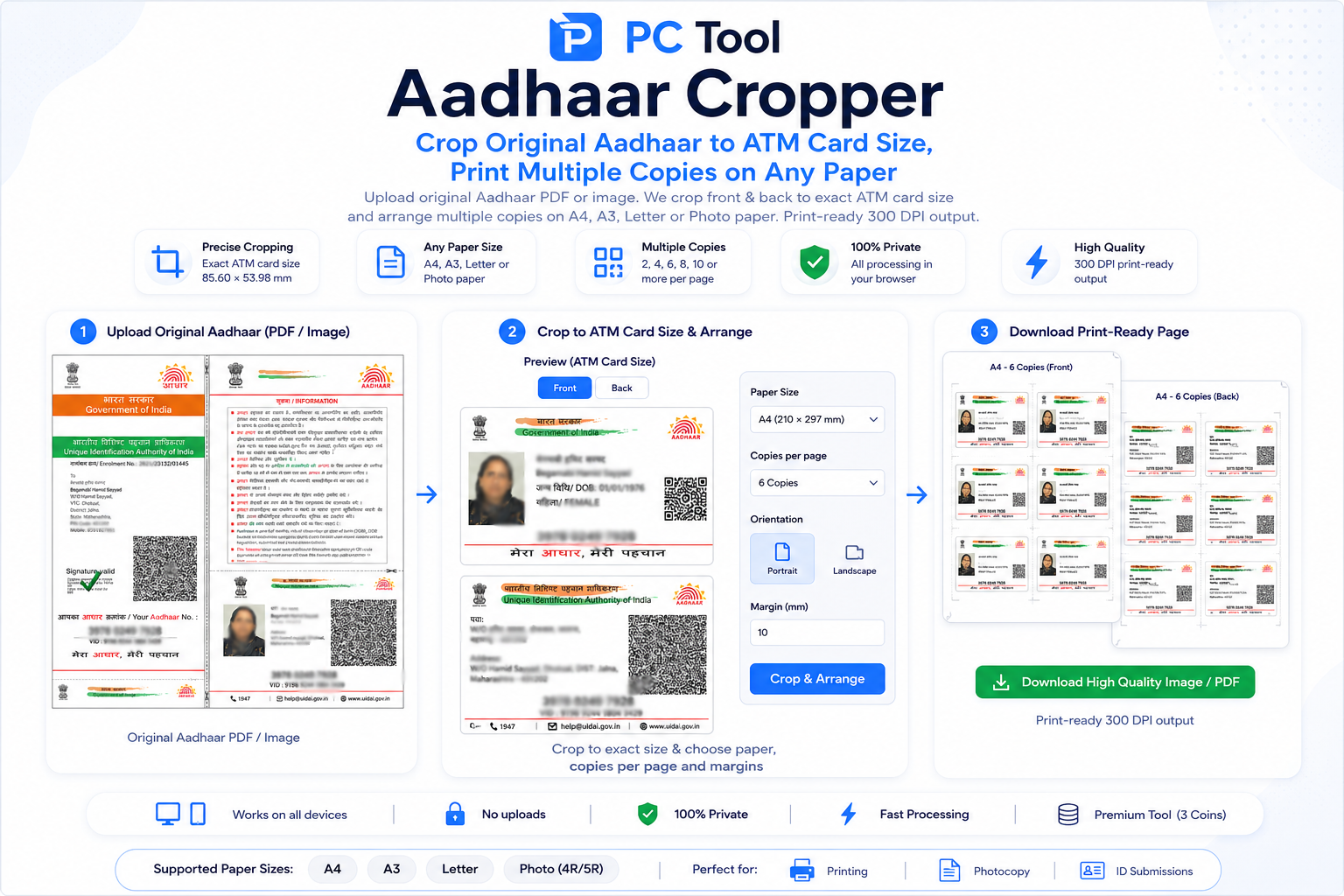
Cropping an Aadhaar card from a scan or e-Aadhaar PDF and printing it cleanly on photo paper or A4 is one of the most frequent daily tasks for CSC operators, VLE centres, photo studios, and individual users across India. When you download an e-Aadhaar PDF from the UIDAI portal, the card front and back appear on a single A4 page with large white margins around them. To print this as a usable plastic-quality Aadhaar card or to keep a clean photocopy in your wallet, you need to extract just the card portions, place them together neatly, and arrange multiple copies on the paper to avoid wasting print area.
Doing this manually in editing software is tedious and produces inconsistent results. Our Aadhaar Cropper tool automates the entire workflow. Upload your e-Aadhaar PDF (password-protected from UIDAI is fully supported) or any scanned Aadhaar image. The tool detects and crops the front and back portions automatically, arranges them with a clean 5mm gap, and lays them out on your chosen paper size — A4 for office printers, A3 for bulk printing, Letter for international standard, or 4x6, 5x7, and 6x8 photo paper sizes for direct printing at photo shops.
You can choose how many copies to print on a single sheet — perfect for CSC operators preparing multiple copies for villagers, families needing copies for all members, or anyone who wants a backup set. The output is generated at 300 DPI, which is the standard print resolution for sharp, professional-quality results. Black-and-white photocopies, colour prints, and even lamination-quality outputs all work perfectly.
This tool is part of our paid premium tier (3 coins per use) because it includes Aadhaar PDF password handling, automatic detection of card boundaries, and high-resolution print-ready output that takes significantly more processing than basic image tools.
All processing happens entirely in your browser. Your Aadhaar image, PDF, and password are never uploaded to any server, ensuring complete privacy for sensitive identity documents.
❓ How to Use This Tool
Cropping and arranging your Aadhaar for printing takes about thirty seconds. Here is the complete process.
Step 1: Upload Your Aadhaar
Click the upload zone or drag and drop your file. Three input types are supported — a JPG or PNG photo of your Aadhaar, a scanned image, or the e-Aadhaar PDF downloaded from the UIDAI portal. Maximum file size is 20 MB.
Step 2: Handle Password (For e-Aadhaar PDFs)
If you uploaded an e-Aadhaar PDF, the tool detects the password protection automatically. The password is the first four letters of your name in capital letters followed by your year of birth in YYYY format — for example, RAME1990 if your name starts with RAMESH and you were born in 1990. Enter the password in the field that appears.
Step 3: Choose Paper Size
Select the paper size you will print on. A4 (210x297 mm) is the most common for office and home printers. A3 (297x420 mm) is for large-format printing or multiple copies. Letter is the standard US size. Photo paper options — 4x6, 5x7, and 6x8 — are sized for direct printing at photo shops and produce the best card-quality output.
Step 4: Set Number of Copies
Use the plus and minus buttons to set how many copies you want on the sheet. Each copy contains the Aadhaar front and back placed together with a 5mm gap. The tool automatically arranges the copies to use the paper space efficiently. Set 1 for a single copy, 2 for two copies, and up to 50 for bulk printing.
Step 5: Click Crop and Download
Once your settings are set, click Crop and Download. The tool processes your Aadhaar at 300 DPI print resolution and generates a print-ready output.
Step 6: Print
Open the downloaded file and print at actual size (do not scale to fit). For best results, use 100 GSM or higher paper for normal copies, and matte or glossy photo paper for premium card-quality prints.
✓ Features & Benefits
- Auto-crops Aadhaar front and back from e-Aadhaar PDF or scanned image
- Supports password-protected e-Aadhaar PDFs from UIDAI portal
- Six paper sizes: A4, A3, Letter, 4x6, 5x7, and 6x8 photo paper
- Multiple copies on one sheet — set from 1 to 50 copies
- Automatic 5mm gap between front and back for clean separation
- Print-ready 300 DPI output for sharp professional quality
- Works with photos, scans, and direct e-Aadhaar PDFs
- 100% browser-based — Aadhaar data never leaves your device
- Works on mobile, tablet, and desktop with full touch support
- No watermark on output — clean print-ready result
💡 Tips for Best Results
For the cleanest crop result, use the original e-Aadhaar PDF downloaded from the UIDAI portal rather than a phone photo. The PDF contains the Aadhaar at the highest possible resolution and produces the sharpest print output.
The e-Aadhaar PDF password is the first four letters of your name (capital letters) followed by your year of birth in YYYY format. For example — for a person named SUNIL born in 1985, the password is SUNI1985. For names shorter than four letters, the entire name is used followed by year of birth.
For CSC operators printing multiple copies for villagers, A4 with 4 to 6 copies per sheet works most economically. The tool arranges the copies to leave minimum waste paper. Use 100 GSM or higher paper for prints that feel substantial and last longer.
For photo paper printing at photo studios, 4x6 size with one copy gives a perfect plastic-card-equivalent print. Get this laminated for an actual physical Aadhaar replacement card.
If you only have a phone photo of your Aadhaar, take it in good light with the card flat and straight. Avoid shadows and tilted angles — the tool will work better with clean, well-lit photos. For best results, scan the card on a flatbed scanner if available.
Never share the cropped Aadhaar PDF or image online or with unverified parties. Aadhaar contains sensitive identity information and must be handled with care.
❔ Frequently Asked Questions
How do I crop an Aadhaar card for printing?
Upload your Aadhaar (image, scan, or e-Aadhaar PDF), enter the PDF password if needed, choose paper size and number of copies, then click Crop and Download. The tool generates a print-ready file with the front and back arranged neatly.
What is the password for the e-Aadhaar PDF?
The password is the first four letters of your name in capital letters followed by your year of birth in YYYY format. For example, RAJE1992 for a person named RAJESH born in 1992. For names with fewer than four letters, the entire name is used followed by year of birth.
What paper sizes can I print on?
Six paper sizes are supported — A4 (210x297 mm) for normal office printers, A3 (297x420 mm) for large prints, Letter (215.9x279.4 mm) US size, and photo paper sizes 4x6, 5x7, and 6x8 for direct printing at photo studios. The tool automatically arranges your Aadhaar to fit the chosen size optimally.
How many copies can I print on a single sheet?
Up to 50 copies per sheet, depending on paper size. A4 typically holds 4 to 6 copies clearly. A3 holds 12 to 16 copies. Photo paper sizes hold 1 to 2 copies. The tool arranges copies efficiently to minimize wasted paper.
Will the printed Aadhaar look like a real card?
When printed on glossy photo paper at 300 DPI and laminated, the output is visually similar to a plastic Aadhaar card. However, this is a printed copy — the original Aadhaar card from UIDAI cannot be replaced by any home or shop print.
Is my Aadhaar uploaded to a server?
No. All processing — including PDF password handling, cropping, and arrangement — runs inside your browser. Your Aadhaar image, PDF, and password are never sent to any external server. This makes the tool completely safe for sensitive identity documents.
How many coins does this tool use?
This is a premium tool that uses 3 coins per use. The premium pricing covers Aadhaar PDF password handling, automatic card detection, and 300 DPI high-resolution print output that requires significant processing power.
📌 Aadhaar Card Cropper ऑनलाइन - आधार Front Back A4 वर Print करा काय आहे?
आधार कार्ड scan किंवा e-Aadhaar PDF मधून crop करून photo paper किंवा A4 वर स्वच्छ print करणे — हे CSC operators, VLE centres, फोटो studios आणि भारतातील सामान्य वापरकर्त्यांसाठी रोजचे सर्वात सामान्य काम आहे. UIDAI portal वरून e-Aadhaar PDF download केल्यावर कार्डची front आणि back एकाच A4 पानावर मोठ्या white margins सह येतात. हे plastic-quality आधार कार्ड म्हणून print करण्यासाठी किंवा wallet साठी स्वच्छ photocopy ठेवण्यासाठी फक्त कार्डचा भाग extract करावा लागतो, neatly एकत्र ठेवावे लागतात, आणि कागदाची जागा वाचवण्यासाठी अनेक copies arrange कराव्या लागतात.
Editing software मध्ये manually हे करणे वेळखाऊ आणि inconsistent results देते. आमचे Aadhaar Cropper टूल संपूर्ण workflow automate करते. e-Aadhaar PDF (UIDAI चा password-protected पूर्ण support) किंवा कोणताही scanned आधार image अपलोड करा. टूल आपोआप front आणि back portions detect आणि crop करते, 5mm clean gap सह arrange करते, आणि निवडलेल्या paper size वर लावते — office printers साठी A4, bulk printing साठी A3, international standard साठी Letter, किंवा photo shops मध्ये थेट print साठी 4x6, 5x7, 6x8 photo paper sizes.
एका sheet वर किती copies हव्या ते निवडा — CSC operators ना गावकऱ्यांसाठी अनेक copies, कुटुंबातील सर्व सदस्यांच्या copies, किंवा backup set साठी perfect. Output 300 DPI वर तयार होतो — sharp, professional-quality results साठी standard print resolution. Black-and-white photocopies, colour prints, आणि lamination-quality outputs सर्व चांगले येतात.
हे टूल आमच्या paid premium tier मध्ये आहे (प्रत्येक वापरासाठी 3 coins) कारण यात Aadhaar PDF password handling, card boundaries आपोआप detect, आणि high-resolution print-ready output आहे — हे basic image tools पेक्षा जास्त processing घेते.
सर्व प्रक्रिया ब्राउझरमध्येच होते. आधार image, PDF आणि password कधीही कोणत्याही सर्व्हरवर पाठवले जात नाहीत.
❓ हे साधन कसे वापरावे
पायरी १: Aadhaar अपलोड करा
File अपलोड करा — JPG, PNG फोटो, scanned image, किंवा UIDAI portal वरून download केलेले e-Aadhaar PDF. जास्तीत जास्त 20 MB.
पायरी २: Password टाका (e-Aadhaar PDF साठी)
e-Aadhaar PDF अपलोड केल्यास टूल आपोआप password protection detect करते. Password म्हणजे नावाची पहिली चार अक्षरे capital letters मध्ये + जन्माचे वर्ष YYYY format मध्ये — उदा. RAMESH साठी 1990 जन्म असल्यास RAME1990. Field मध्ये password टाका.
पायरी ३: Paper Size निवडा
A4 (210x297 mm) — office आणि home printers साठी. A3 (297x420 mm) — मोठे prints किंवा अनेक copies. Letter — US standard. Photo paper — 4x6, 5x7, 6x8 — photo shops मध्ये थेट print साठी, सर्वोत्तम card-quality output.
पायरी ४: Copies ची संख्या सेट करा
Plus आणि minus buttons वापरून copies ची संख्या निवडा. प्रत्येक copy मध्ये Aadhaar front आणि back 5mm gap सह असतात. टूल कागदाची जागा efficiently वापरते. 1 ते 50 copies पर्यंत.
पायरी ५: Crop and Download दाबा
Settings सेट केल्यावर Crop and Download दाबा. टूल 300 DPI print resolution वर process करते आणि print-ready output तयार करते.
पायरी ६: Print करा
Downloaded file उघडा आणि actual size वर print करा (scale to fit नको). उत्तम results साठी normal copies साठी 100 GSM किंवा अधिक paper, आणि premium card-quality prints साठी matte किंवा glossy photo paper वापरा.
✓ वैशिष्ट्ये आणि फायदे
- e-Aadhaar PDF किंवा scanned image मधून front-back आपोआप crop
- UIDAI portal चे password-protected e-Aadhaar PDF support
- सहा paper sizes: A4, A3, Letter, 4x6, 5x7, 6x8 photo paper
- एका sheet वर अनेक copies — 1 ते 50 पर्यंत
- Front आणि back मध्ये 5mm आपोआप gap
- Print-ready 300 DPI output — sharp professional quality
- फोटो, scans आणि थेट e-Aadhaar PDF सर्व चालतात
- १००% ब्राउझर-आधारित — Aadhaar data सर्व्हरवर जात नाही
- Mobile, tablet, desktop सर्वत्र — पूर्ण touch support
- Output वर कोणताही watermark नाही
💡 सर्वोत्तम परिणामांसाठी टिपा
सर्वात स्वच्छ crop result साठी UIDAI portal वरून download केलेले मूळ e-Aadhaar PDF वापरा — फोन फोटो पेक्षा. PDF मध्ये highest resolution असते आणि sharpest print output मिळतो.
e-Aadhaar PDF चे password म्हणजे नावाची पहिली चार अक्षरे (capital letters) + जन्माचे वर्ष YYYY format. उदा. SUNIL नावाची व्यक्ती 1985 जन्म — password SUNI1985. चार पेक्षा कमी अक्षरे असल्यास संपूर्ण नाव + वर्ष.
CSC operators ना गावकऱ्यांसाठी अनेक copies print करताना A4 वर 4 ते 6 copies सर्वात economical. Substantial आणि टिकाऊ prints साठी 100 GSM किंवा अधिक paper.
Photo studios मध्ये photo paper printing साठी 4x6 size आणि एक copy plastic-card सारखे perfect print देते. Lamination करून physical Aadhaar replacement card मिळतो.
फक्त phone photo असल्यास चांगल्या प्रकाशात, कार्ड सपाट आणि सरळ ठेवून फोटो काढा. सावल्या आणि tilted angles टाळा. Flatbed scanner असल्यास सर्वोत्तम.
Cropped Aadhaar PDF किंवा image online किंवा अनोळखी व्यक्तींना कधीही पाठवू नका. Aadhaar मध्ये संवेदनशील identity माहिती आहे.
❔ वारंवार विचारले जाणारे प्रश्न
Aadhaar card print साठी कसे crop करावे?
Aadhaar (image, scan, किंवा e-Aadhaar PDF) अपलोड करा, PDF password असल्यास टाका, paper size आणि copies निवडा, आणि Crop and Download दाबा. Front आणि back neatly arrange केलेली print-ready file तयार होते.
e-Aadhaar PDF चे password काय असते?
Password म्हणजे नावाची पहिली चार अक्षरे capital letters मध्ये + जन्माचे वर्ष YYYY format. उदा. RAJESH नावाची व्यक्ती 1992 जन्म — password RAJE1992. चार पेक्षा कमी अक्षरांचे नाव असल्यास संपूर्ण नाव + वर्ष.
कोणत्या paper sizes वर print करता येते?
सहा paper sizes — A4 (210x297 mm) normal printers साठी, A3 (297x420 mm) मोठ्या prints साठी, Letter (215.9x279.4 mm) US size, आणि photo paper sizes 4x6, 5x7, 6x8 photo studios मध्ये थेट print साठी. टूल आपोआप Aadhaar निवडलेल्या size वर fit करते.
एका sheet वर किती copies येतात?
Paper size नुसार 50 copies पर्यंत. A4 वर साधारण 4 ते 6 copies स्पष्ट दिसतात. A3 वर 12 ते 16 copies. Photo paper वर 1 ते 2 copies. टूल कागदाची जागा वाचवण्यासाठी efficiently arrange करते.
Print केलेले Aadhaar खरे card सारखे दिसते का?
Glossy photo paper वर 300 DPI ला print आणि lamination केल्यावर output दिसायला plastic Aadhaar card सारखे होते. मात्र हे print केलेले copy आहे — UIDAI चे मूळ Aadhaar card कोणत्याही home किंवा shop print ने replace होत नाही.
माझे Aadhaar सर्व्हरवर जाते का?
नाही. PDF password handling, cropping, arrangement सर्व काही ब्राउझरमध्येच होते. Aadhaar image, PDF आणि password कधीही external सर्व्हरवर पाठवले जात नाहीत — संवेदनशील identity documents साठी संपूर्ण safety.
या टूल साठी किती coins लागतात?
हे premium टूल आहे — प्रत्येक वापरासाठी 3 coins. Aadhaar PDF password handling, automatic card detection, आणि 300 DPI high-resolution print output यांना जास्त processing power लागते.