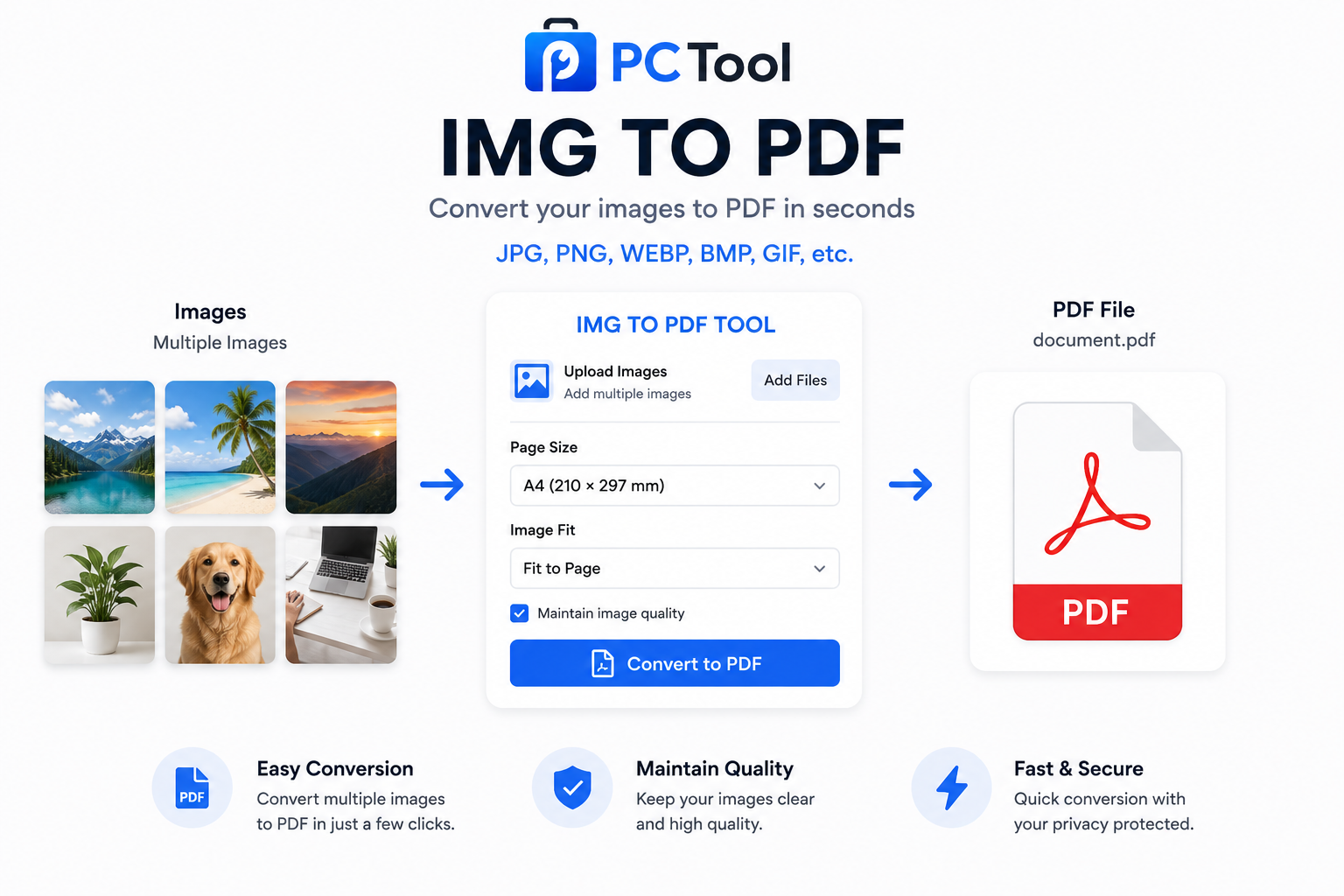
📌 What is Image to PDF Converter Online Free - Convert JPG, PNG to PDF?
Converting images to PDF is one of the most practical document tasks in everyday digital life. A PDF file is universally accepted, maintains its formatting across all devices and operating systems, and is the standard format required by government offices, banks, courts, universities, and employers when submitting scanned documents. Whether you have a single photograph or a collection of scanned pages, combining them into a single PDF makes sharing, emailing, and archiving significantly easier.
There are countless everyday situations where this conversion is essential. Students need to submit assignment scans, mark sheets, and certificates as a single PDF to college portals. Job seekers need to combine a passport photo, Aadhaar card scan, and educational documents into one PDF for HR departments. Self-employed individuals need to compile invoice photos, receipts, and bills into a single PDF for tax filings or loan applications. Medical patients need to send multiple prescription photos and lab report scans to insurance companies or hospitals.
Beyond simple conversion, our Image to PDF tool gives you full control over how your PDF is structured. You can upload up to 20 images, drag and reorder the thumbnails to set the exact page sequence, and choose between placing one image per page or arranging all images in a grid layout on a single page. Page size options include A4, A3, Letter, Legal, and fully custom dimensions in centimeters, millimeters, or inches. Margin control lets you add spacing around images for a cleaner, more professional look.
If the portal you are submitting to has a file size limit, simply enter your target size in KB or MB and the tool will compress the PDF precisely to meet that requirement. All processing happens entirely in your browser — no images or documents are ever uploaded to any server.
❓ How to Use This Tool
Creating a PDF from your images is straightforward and takes less than a minute. Here is the complete process.
Step 1: Upload Your Images
Click the upload zone or drag and drop your images onto the page. The tool accepts JPG, PNG, WebP, BMP, and GIF files — up to 20 images per session, each up to 25 MB. All uploaded images appear as draggable thumbnails in a grid so you can see your full document at a glance.
Step 2: Reorder Pages by Dragging
This is one of the most useful features of the tool. Simply drag the image thumbnails into the order you want them to appear in the PDF. This is especially helpful when you scan multiple pages of a document separately and need to arrange them in the correct sequence before generating the PDF.
Step 3: Choose Your Layout
Select "One image per page" to place each image on its own full page — ideal for photo albums, document scans, and multi-page certificates. Select "Grid on single page" to arrange all images in a 2, 3, or 4-column grid on a single PDF page — useful for passport photo sheets, product catalogs, and compact reference documents.
Step 4: Configure Page Settings
Choose your page size from A4 (most common for documents), A3 (for larger prints), Letter (standard in the USA), Legal, or enter fully custom dimensions in cm, mm, or inches. Select orientation — Auto detects the best fit for each image, Portrait forces vertical pages, and Landscape forces horizontal. Choose a margin size from None, Small, Medium, or Large depending on how much spacing you want around your images.
Step 5: Set Target PDF Size (Optional)
If the submission portal has a maximum file size such as "PDF must be under 2 MB," enter that value in the KB or MB field. The tool compresses the JPEG quality of images inside the PDF to meet your target precisely without exceeding it.
Step 6: Generate and Download
Click "Generate PDF." The tool builds your PDF entirely in the browser using jsPDF — no server upload required. Once complete, optionally rename the file and click Download PDF to save it to your device.
✓ Features & Benefits
- Convert up to 20 images into a single PDF in one step
- Drag-and-drop thumbnail reordering to set page sequence
- One image per page or grid layout with 2, 3, or 4 columns
- Page sizes: A4, A3, Letter, Legal, and fully custom dimensions
- Custom dimensions in centimeters, millimeters, or inches
- Orientation control: Auto, Portrait, or Landscape
- Margin options: None, Small, Medium, or Large
- Target PDF file size in KB or MB for portal submissions
- Supports JPG, PNG, WebP, BMP, GIF up to 25 MB each
- 100% browser-based using jsPDF — images never uploaded
- Works on mobile, tablet, and desktop without any app install
- No registration or login required — completely free
💡 Tips for Best Results
For the cleanest document PDF, use JPG images scanned at a consistent angle and crop them before uploading. Straight, well-cropped scans look significantly more professional than tilted or over-bordered photos.
When combining multiple document pages — such as a multi-page certificate or a booklet — scan each page separately, upload all at once, and use the drag-to-reorder feature to arrange them in the correct sequence before generating.
For government and bank submissions, A4 portrait with a small margin produces the most accepted format. If the portal specifies a file size limit, always use the target size field rather than trying to manually compress images beforehand — the tool handles this automatically.
For passport photo sheets or ID card layouts, use the Grid layout with 2 or 4 columns on A4 — this is the standard format accepted by most photo printing shops.
❔ Frequently Asked Questions
How do I convert multiple images into one PDF?
Upload all your images at once, drag the thumbnails to set the page order, choose your layout and page size, then click Generate PDF. All images are combined into a single downloadable PDF file in the order you arranged them.
Can I put multiple images on a single PDF page?
Yes. Select the "Grid on single page" layout option and choose 2, 3, or 4 columns. All uploaded images will be arranged in a grid on one PDF page. This is useful for passport photo sheets, product image catalogs, and compact reference documents.
What page sizes are supported?
A4, A3, Letter, Legal, and fully custom dimensions. With the custom option, you can enter any width and height in centimeters, millimeters, or inches — useful for non-standard document sizes or specific print requirements.
Can I control the order of pages in the PDF?
Yes. After uploading, drag the image thumbnails in the grid to rearrange them in any order. The PDF pages will appear in exactly the sequence you set. This is especially useful when scanning multi-page documents one page at a time.
Can I set a specific PDF file size?
Yes. Enter your required size in the KB or MB target field before generating. The tool adjusts the JPEG quality of images embedded in the PDF to land at or below your specified target. The output will never exceed the size you set.
Are my images uploaded to a server?
No. The entire PDF generation process runs inside your browser using the jsPDF library. Your images are never sent to any external server. This ensures complete privacy and also means the tool works instantly without waiting for any network upload or download.
What is the maximum number of images I can convert?
You can upload up to 20 images per session, each up to 25 MB in size. For larger batches, generate the first PDF, then start a new session for the next set of images.
📌 इमेज ते PDF कन्व्हर्टर ऑनलाइन - JPG, PNG ते PDF बनवा काय आहे?
इमेजेस PDF मध्ये रूपांतरित करणे हे रोजच्या डिजिटल जीवनातील सर्वात उपयुक्त काम आहे. PDF हा सर्वत्र स्वीकारला जाणारा फॉरमॅट आहे जो सरकारी कार्यालये, बँका, न्यायालये, विद्यापीठे आणि नियोक्ते स्कॅन केलेले दस्तऐवज सादर करताना मागतात.
विद्यार्थ्यांना गुणपत्रिका आणि प्रमाणपत्रे एकाच PDF मध्ये महाविद्यालय पोर्टलवर सादर करावी लागतात. नोकरी अर्जदारांना पासपोर्ट फोटो, आधार कार्ड स्कॅन आणि शैक्षणिक कागदपत्रे एकत्र करावी लागतात. स्वयंरोजगार करणाऱ्यांना कर दाखल्यासाठी बिले आणि पावत्या एकाच PDF मध्ये जोडाव्या लागतात.
आमचे Image to PDF टूल तुम्हाला PDF ची संपूर्ण रचना नियंत्रित करण्याची सुविधा देते. एकावेळी २० इमेजेस अपलोड करा, thumbnails ड्रॅग करून क्रम ठरवा, प्रत्येक इमेज वेगळ्या पानावर किंवा grid layout मध्ये ठेवा. A4, A3, Letter, Legal किंवा custom आकार निवडा. KB किंवा MB मध्ये target size सेट करता येतो. सर्व प्रक्रिया ब्राउझरमध्येच होते.
❓ हे साधन कसे वापरावे
पायरी १: इमेजेस अपलोड करा
अपलोड झोनवर क्लिक करा किंवा फोटो ड्रॅग-ड्रॉप करा. JPG, PNG, WebP, BMP, GIF फॉरमॅट सपोर्ट — एकावेळी २० इमेजेस, प्रत्येकी जास्तीत जास्त २५ MB.
पायरी २: Thumbnails ड्रॅग करून क्रम ठरवा
अपलोड केलेल्या इमेजेस grid मध्ये दिसतात. PDF मध्ये हव्या त्या क्रमाने thumbnails ड्रॅग करा. वेगळ्या पानांचे स्कॅन एकत्र करताना हे खूप उपयुक्त आहे.
पायरी ३: Layout निवडा
"One image per page" — प्रत्येक इमेज स्वतंत्र पानावर. "Grid on single page" — सर्व इमेजेस २, ३ किंवा ४ columns च्या grid मध्ये एकाच पानावर.
पायरी ४: Page Settings सेट करा
Page size निवडा: A4, A3, Letter, Legal किंवा custom (cm, mm, inches मध्ये). Orientation: Auto, Portrait किंवा Landscape. Margin: None, Small, Medium किंवा Large.
पायरी ५: Target PDF Size सेट करा (ऐच्छिक)
पोर्टलवर "PDF २ MB पेक्षा कमी असावा" असे असल्यास KB किंवा MB फील्डमध्ये टाका.
पायरी ६: Generate करा आणि डाउनलोड करा
"Generate PDF" दाबा. PDF तयार झाल्यावर नाव बदलून Download PDF करा.
✓ वैशिष्ट्ये आणि फायदे
- एकावेळी २० इमेजेस एकाच PDF मध्ये
- Drag-and-drop thumbnail reordering
- One per page किंवा Grid layout (२, ३, ४ columns)
- Page size: A4, A3, Letter, Legal, Custom
- cm, mm किंवा inches मध्ये custom dimensions
- Auto, Portrait, Landscape orientation
- None, Small, Medium, Large margin पर्याय
- KB किंवा MB मध्ये target PDF size
- JPG, PNG, WebP, BMP, GIF सपोर्ट (२५ MB पर्यंत)
- १००% ब्राउझर-आधारित — सर्व्हरवर अपलोड नाही
💡 सर्वोत्तम परिणामांसाठी टिपा
स्वच्छ दस्तऐवज PDF साठी इमेजेस अपलोड करण्यापूर्वी त्या सरळ आणि crop केलेल्या असाव्यात. सरकारी आणि बँकिंग सादरीकरणासाठी A4 portrait आणि small margin सर्वाधिक स्वीकारले जाते. पासपोर्ट फोटो शीटसाठी Grid layout मध्ये ४ columns A4 वर वापरा — हा photo printing shops मध्ये standard format आहे.
❔ वारंवार विचारले जाणारे प्रश्न
अनेक इमेजेस एकाच PDF मध्ये कसे करावे?
सर्व इमेजेस एकत्र अपलोड करा, thumbnails ड्रॅग करून क्रम ठरवा, layout आणि page size निवडा, नंतर Generate PDF दाबा. सर्व इमेजेस एकाच PDF मध्ये तुमच्या क्रमाने येतात.
एकाच पानावर अनेक इमेजेस ठेवता येतात का?
होय. "Grid on single page" निवडा आणि २, ३ किंवा ४ columns निवडा. सर्व इमेजेस एकाच PDF पानावर grid मध्ये मांडल्या जातात.
Target PDF file size सेट करता येतो का?
होय. KB किंवा MB फील्डमध्ये हवा तो आकार टाका. टूल PDF मधील JPEG quality adjust करून target पूर्ण करते — output कधीही target पेक्षा जास्त होत नाही.
माझ्या इमेजेस सर्व्हरवर जातात का?
नाही. सर्व PDF generation jsPDF library वापरून ब्राउझरमध्येच होते. कोणतीही इमेज कोणत्याही सर्व्हरवर पाठवली जात नाही.
जास्तीत जास्त किती इमेजेस अपलोड करता येतात?
एका session मध्ये २० इमेजेस, प्रत्येकी २५ MB पर्यंत. मोठ्या batch साठी पहिला PDF generate करा, नंतर नवीन session मध्ये पुढच्या इमेजेस करा.