📌 What is Add Watermark to PDF Online Free - PDF Watermark Tool?
A watermark is a semi-transparent text label that appears over every page of a document, typically used to mark its status, ownership, or confidentiality. Adding a watermark to your PDF is one of the simplest ways to protect documents from unauthorized use, mark drafts clearly, indicate copyright, or label sensitive files as confidential.
Watermarks are extremely common in professional, legal, and business contexts. Lawyers add CONFIDENTIAL or PRIVILEGED watermarks to legal drafts before sharing with clients. Businesses watermark proposals and contracts as DRAFT before final approval. Photographers, designers, and content creators add their name or website as a watermark to portfolio PDFs to prevent unauthorized copying. Government tender documents are often marked SAMPLE or COPY before distribution. Medical records, financial reports, and academic papers all benefit from clear status labeling.
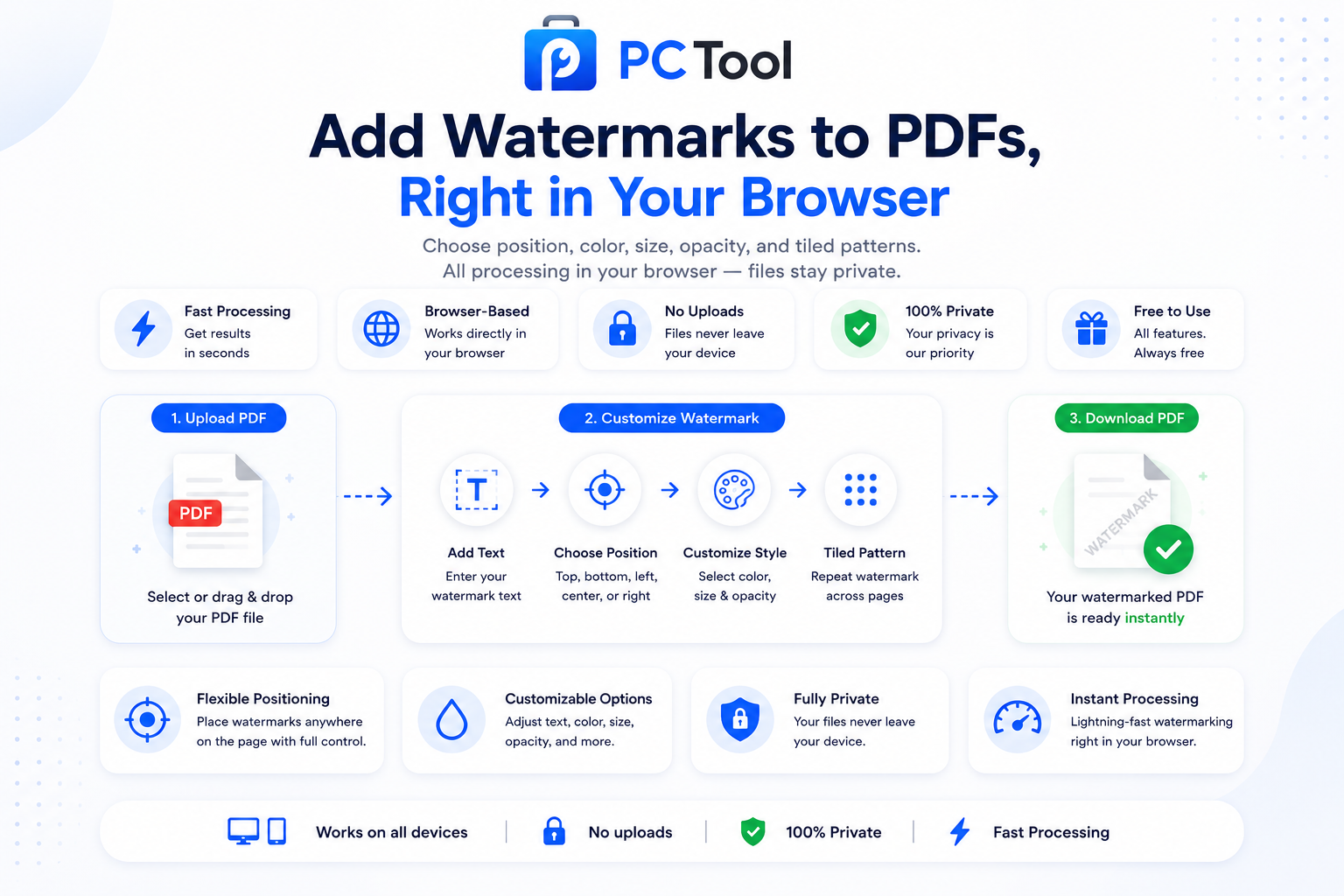
Our PDF Watermark tool lets you add custom text watermarks to any PDF in seconds. Type any text — your name, your website, CONFIDENTIAL, DRAFT, COPY, SAMPLE, or any custom message. Choose from four placement options including a powerful tiled mode that repeats your watermark in a grid pattern across every page, making it nearly impossible to crop out. Adjust font size from 12pt to 120pt, opacity from 5% to 100% for the perfect balance between visibility and readability, and pick from four colors — gray, red, blue, or black.
The watermark is permanently embedded into every page of the PDF as a proper text layer. It appears in all PDF readers and prints cleanly on paper. The original document content stays fully readable underneath the watermark.
All processing runs entirely in your browser using the pdf-lib library. The PDF file is never uploaded to any server, ensuring complete privacy for confidential business, legal, and personal documents.
❓ How to Use This Tool
Adding a watermark to your PDF takes about thirty seconds. Here is the complete process.
Step 1: Upload Your PDF
Click the upload zone or drag and drop your PDF onto the page. The first page preview appears so you can see exactly where the watermark will be applied.
Step 2: Enter Watermark Text
Type the text you want as your watermark. Common choices include CONFIDENTIAL, DRAFT, COPY, SAMPLE, your business name, your website URL, or any custom message. Short text in uppercase looks the most professional, but any length works.
Step 3: Choose Position
Four position options are available. Center (Diagonal) is the most common — large text rotated diagonally across the page, used for status labels like CONFIDENTIAL or DRAFT. Top places the watermark across the top margin, useful for headers or document classification. Bottom places it across the bottom margin. Tiled (Repeat) repeats your watermark in a grid pattern across the entire page, providing the strongest protection against cropping.
Step 4: Adjust Font Size
Use the slider to set font size between 12pt and 120pt. Larger sizes (60pt to 100pt) work best for diagonal center watermarks. Smaller sizes (16pt to 28pt) work well for tiled mode and edge placements. The default 48pt is balanced for most uses.
Step 5: Set Opacity
Opacity controls how transparent the watermark is. Lower values (10% to 30%) keep the original content fully readable while still showing the watermark — recommended for documents that need to be reviewed. Higher values (50% to 100%) make the watermark more prominent, useful for samples and protective copies.
Step 6: Pick Color
Four colors are available. Gray is the most neutral and professional choice. Red is highly visible and stands out clearly — used for important markings like DRAFT or NOT FOR DISTRIBUTION. Blue works well for branding and corporate documents. Black is the most opaque and visible option.
Step 7: Click Add Watermark
Once your settings look right, click Add Watermark. The tool applies the watermark to every page of the PDF.
Step 8: Download
The result panel shows the watermarked PDF. Optionally rename the file, then click Download to save it to your device.
✓ Features & Benefits
- Add custom text watermarks to any PDF
- Four position options: center diagonal, top, bottom, and tiled repeat pattern
- Tiled mode repeats watermark in a grid — strongest protection against cropping
- Font size adjustable from 12pt to 120pt
- Opacity adjustable from 5% to 100% for perfect visibility balance
- Four color choices: gray, red, blue, and black
- Watermark applied to every page of the PDF in one step
- Embedded as proper text layer — visible in all PDF readers and when printed
- 100% browser-based using pdf-lib — PDF never uploaded
- No registration or login required — completely free
💡 Tips for Best Results
For legal documents and confidential business files, the most effective combination is CONFIDENTIAL or PRIVILEGED text in red color, center diagonal position, 60pt to 80pt font size, and 30% to 40% opacity. This creates a clearly visible status label that does not block document content.
For draft documents under review, use DRAFT in gray color at 50pt with 25% opacity, center diagonal. This is professional, clearly indicates the document is not final, and stays subtle enough for easy review.
For protecting your work from unauthorized copying, the tiled position is the strongest option. Use your name or website URL at 18pt to 24pt with 15% to 20% opacity in gray. The repeating pattern makes it nearly impossible to crop or photoshop out without destroying the document.
For sample documents and marketing materials, use SAMPLE or COPY at 80pt diagonal in red with 40% opacity. This is highly visible and signals that the document is for reference only.
If your PDF will be printed and physically distributed, use higher opacity values (50% or above) — print tends to lighten watermarks compared to screen display.
❔ Frequently Asked Questions
How do I add a watermark to a PDF?
Upload your PDF, enter the watermark text, choose position, adjust font size and opacity, pick a color, then click Add Watermark. The watermarked PDF is ready to download — every page will have the watermark applied.
What watermark positions are available?
Four positions: Center (Diagonal) for large status labels like CONFIDENTIAL, Top for headers, Bottom for footers, and Tiled (Repeat) which repeats the watermark in a grid pattern across the entire page for maximum protection against cropping.
Can I customize the watermark appearance?
Yes. Font size adjusts from 12pt to 120pt, opacity from 5% to 100%, and you can pick from four colors — gray, red, blue, or black. These options cover most professional and personal use cases.
What is the tiled position used for?
Tiled mode repeats your watermark in a grid pattern across the entire page. This makes it nearly impossible for someone to crop or edit out the watermark without destroying the document. It is the strongest option for protecting portfolios, samples, and proprietary content.
Will the watermark appear when printed?
Yes. The watermark is embedded as a proper text layer inside the PDF, not as a screen overlay. It appears correctly in all PDF readers and prints cleanly on paper. For printed documents, use slightly higher opacity since print tends to lighten watermarks.
Can I add my logo as a watermark?
The current tool supports text watermarks only. For logo or image watermarks, save your logo as text-based branding and use it as a text watermark. Image-based watermarking will be added in a future update.
Is my PDF uploaded to a server?
No. The entire process runs inside your browser using the pdf-lib library. Your PDF file is never sent to any external server. This makes the tool completely safe for confidential legal documents, business contracts, and proprietary work.
📌 PDF ला Watermark कसे लावावे - PDF Watermark Tool काय आहे?
Watermark म्हणजे document च्या प्रत्येक पानावर दिसणारा semi-transparent text label. Document ची स्थिती, मालकी, किंवा गोपनीयता दर्शवण्यासाठी watermark वापरतात. PDF ला watermark लावणे हे documents चे अनधिकृत वापरापासून संरक्षण करण्याचा, draft documents स्पष्टपणे चिन्हांकित करण्याचा, copyright दाखवण्याचा किंवा संवेदनशील files ना confidential म्हणून label करण्याचा सर्वात सोपा मार्ग आहे.
Professional, legal आणि business कामात watermarks अत्यंत सामान्य आहेत. वकील legal drafts मध्ये CONFIDENTIAL किंवा PRIVILEGED watermark टाकतात. व्यवसाय proposals आणि contracts वर final approval आधी DRAFT लावतात. फोटोग्राफर, designers, आणि content creators portfolio PDF वर त्यांचे नाव किंवा website लावतात — copying टाळण्यासाठी. सरकारी tender कागदपत्रांवर वितरणापूर्वी SAMPLE किंवा COPY असे लावलेले असते.
आमचे PDF Watermark टूल कोणत्याही PDF ला सेकंदात custom text watermark लावते. कोणताही text टाका — तुमचे नाव, website, CONFIDENTIAL, DRAFT, COPY, SAMPLE, किंवा custom message. चार placement options मधून निवडा — Tiled mode प्रत्येक पानावर grid pattern मध्ये watermark repeat करतो. Font size 12pt ते 120pt, opacity 5% ते 100%, आणि चार रंग — gray, red, blue, black.
Watermark प्रत्येक पानावर proper text layer म्हणून कायमस्वरूपी embed होतो. सर्व PDF readers मध्ये दिसतो आणि print मध्ये स्वच्छ येतो. मूळ document content खाली पूर्ण वाचनीय राहतो.
सर्व प्रक्रिया pdf-lib library वापरून ब्राउझरमध्येच होते. PDF कधीही कोणत्याही सर्व्हरवर पाठवली जात नाही.
❓ हे साधन कसे वापरावे
पायरी १: PDF अपलोड करा
अपलोड झोनवर क्लिक करा किंवा PDF ड्रॅग-ड्रॉप करा. पहिल्या पानाचा preview दिसतो — watermark कुठे लागेल हे आधी पाहता येते.
पायरी २: Watermark Text टाका
हवा तो text टाका. सामान्य पर्याय — CONFIDENTIAL, DRAFT, COPY, SAMPLE, व्यवसायाचे नाव, website URL, किंवा custom message. Uppercase मधील short text सर्वात professional दिसतो, पण कोणत्याही लांबीचा text चालतो.
पायरी ३: Position निवडा
चार positions उपलब्ध. Center (Diagonal) — सर्वात सामान्य, मोठा text तिरकस ठेवतो, CONFIDENTIAL किंवा DRAFT साठी. Top — वरच्या margin वर. Bottom — खालच्या margin वर. Tiled (Repeat) — संपूर्ण पानावर grid pattern मध्ये repeat, cropping पासून सर्वात मजबूत संरक्षण.
पायरी ४: Font Size Adjust करा
Slider वापरून 12pt ते 120pt पर्यंत निवडा. मोठे sizes (60pt ते 100pt) — center diagonal साठी. लहान sizes (16pt ते 28pt) — tiled आणि edge placements साठी. Default 48pt बहुतेक वापरांसाठी balanced.
पायरी ५: Opacity सेट करा
Opacity म्हणजे watermark किती transparent दिसेल. कमी values (10% ते 30%) — मूळ content पूर्ण वाचनीय ठेवतात आणि watermark सूक्ष्म दिसतो. जास्त values (50% ते 100%) — watermark प्रमुख दिसतो, samples आणि protective copies साठी उपयुक्त.
पायरी ६: रंग निवडा
चार रंग — Gray (neutral आणि professional), Red (अत्यंत दृश्यमान, DRAFT किंवा NOT FOR DISTRIBUTION साठी), Blue (branding आणि corporate documents साठी), Black (सर्वात opaque).
पायरी ७: Add Watermark दाबा
Settings बरोबर असल्यास Add Watermark दाबा. प्रत्येक पानावर watermark लागते.
पायरी ८: Download करा
Result panel मध्ये watermarked PDF दिसते. हवे तर नाव बदला, नंतर Download दाबा.
✓ वैशिष्ट्ये आणि फायदे
- कोणत्याही PDF ला custom text watermark
- चार positions: center diagonal, top, bottom, tiled repeat pattern
- Tiled mode — cropping पासून सर्वात मजबूत संरक्षण
- Font size 12pt ते 120pt पर्यंत adjustable
- Opacity 5% ते 100% पर्यंत — perfect visibility साठी
- चार रंग: gray, red, blue, black
- PDF च्या प्रत्येक पानावर एकाच पायरीत watermark
- Proper text layer म्हणून embed — सर्व readers आणि print मध्ये दिसते
- १००% ब्राउझर-आधारित — PDF सर्व्हरवर अपलोड होत नाही
- Registration किंवा login नाही — पूर्णपणे मोफत
💡 सर्वोत्तम परिणामांसाठी टिपा
Legal documents आणि confidential business files साठी सर्वात परिणामकारक combination म्हणजे CONFIDENTIAL किंवा PRIVILEGED text — red रंगात, center diagonal, 60pt ते 80pt font, आणि 30% ते 40% opacity. Status label स्पष्ट दिसतो पण content block करत नाही.
Draft documents साठी DRAFT — gray रंगात, 50pt, 25% opacity, center diagonal. Professional दिसते, document final नाही हे स्पष्ट होते, आणि review साठी सूक्ष्म राहते.
स्वतःचे काम copying पासून संरक्षित करण्यासाठी Tiled position सर्वात मजबूत पर्याय आहे. नाव किंवा website URL — 18pt ते 24pt, 15% ते 20% opacity, gray रंगात. Repeating pattern crop किंवा photoshop करणे जवळपास अशक्य करते.
Sample documents आणि marketing materials साठी SAMPLE किंवा COPY — 80pt diagonal, red रंगात, 40% opacity. अत्यंत दृश्यमान आणि document फक्त संदर्भासाठी आहे हे दर्शवते.
PDF print करून वितरित करायची असल्यास जास्त opacity (50% किंवा अधिक) वापरा — print मध्ये watermark थोडे फिकट दिसते.
❔ वारंवार विचारले जाणारे प्रश्न
PDF ला watermark कसे लावावे?
PDF अपलोड करा, watermark text टाका, position निवडा, font size आणि opacity adjust करा, रंग निवडा, आणि Add Watermark दाबा. Watermarked PDF download साठी तयार होते — प्रत्येक पानावर watermark येतो.
कोणती watermark positions मिळतात?
चार positions — Center (Diagonal) मोठ्या status labels साठी, Top वरच्या margin वर, Bottom खालच्या margin वर, आणि Tiled (Repeat) जे संपूर्ण पानावर grid pattern मध्ये watermark repeat करते — cropping पासून जास्तीत जास्त संरक्षण.
Watermark चे appearance customize करता येते का?
होय. Font size 12pt ते 120pt, opacity 5% ते 100%, आणि चार रंग — gray, red, blue, black. हे options बहुतेक professional आणि वैयक्तिक वापरासाठी पुरेसे आहेत.
Tiled position कशासाठी वापरतात?
Tiled mode संपूर्ण पानावर grid pattern मध्ये watermark repeat करते. कोणीतरी watermark crop किंवा edit करण्याचा प्रयत्न केल्यास document खराब होते. Portfolios, samples, आणि proprietary content संरक्षित करण्यासाठी सर्वात मजबूत पर्याय.
Print केल्यावर watermark येते का?
होय. Watermark proper text layer म्हणून PDF मध्ये embed होते — screen overlay म्हणून नाही. सर्व PDF readers मध्ये योग्य दिसते आणि कागदावर स्वच्छ print होते. Print साठी थोडी जास्त opacity वापरा कारण print मध्ये watermark फिकट दिसते.
Logo watermark म्हणून लावता येतो का?
सध्याचे टूल फक्त text watermark सपोर्ट करते. Logo किंवा image watermarking भविष्यातील update मध्ये येईल.
माझी PDF सर्व्हरवर जाते का?
नाही. संपूर्ण प्रक्रिया pdf-lib library वापरून ब्राउझरमध्येच होते. PDF कोणत्याही external सर्व्हरवर पाठवली जात नाही — कायदेशीर कागदपत्रे, business contracts, proprietary कामासाठी संपूर्ण privacy.