📌 What is Add Page Numbers to PDF Online Free - PDF Page Number Tool?
Adding page numbers to a PDF is essential for any document that needs to look professional, organized, and easy to navigate. Court submissions, college thesis documents, project reports, business proposals, contracts, e-books, and government tender documents almost always require visible page numbers — many portals and reviewers actively reject submissions without them. A 50-page document without page numbers is nearly impossible to reference, cite, or review systematically.
Page numbering is also a basic legal requirement in many official contexts. Court paperwork in India follows strict pagination rules. Tender submissions to government departments must show page numbers and total page count. Academic theses and dissertations require numbered pages with specific formatting. Even simple business documents like agreements and proposals look significantly more polished with proper numbering.
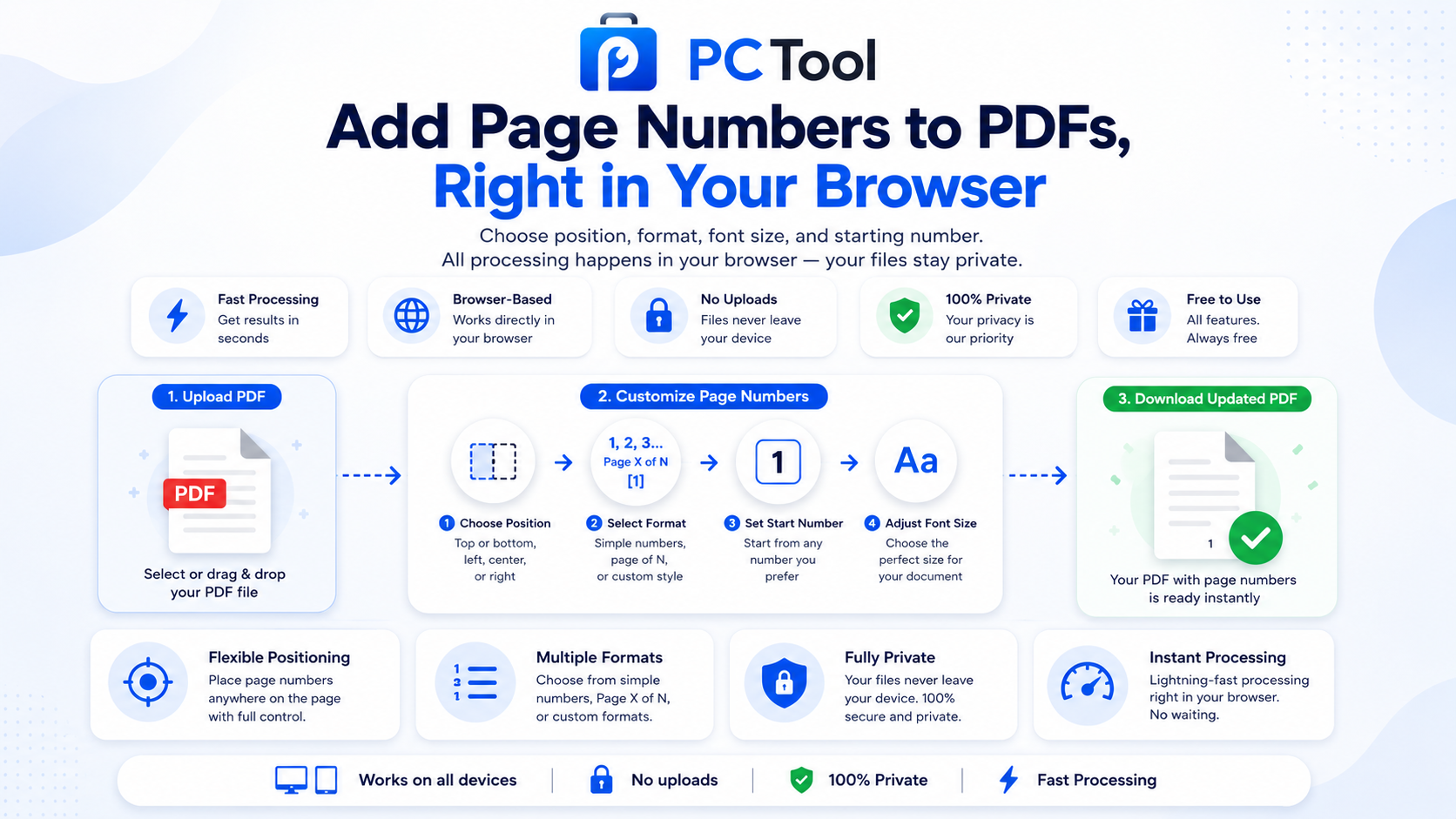
Our PDF Page Numbers tool lets you add page numbers to any PDF in seconds. Choose from six positions (top-left, top-center, top-right, bottom-left, bottom-center, bottom-right) using a visual picker that shows exactly where the numbers will appear. Pick from four common formats — simple numbers (1, 2, 3), Page X of N, dashed (- 1 -), or bracketed ([1]). Set any starting number, useful for documents that continue from a previous volume or section. Adjust font size from 8 to 24 points to match the look of your document.
A live preview shows exactly how each number will look before you apply it, so there is no guesswork. Once applied, the numbers are embedded permanently into the PDF as a proper text layer — they remain visible in any PDF reader and even when the document is printed.
All processing runs entirely in your browser using the pdf-lib library. The PDF file is never uploaded to any server, ensuring complete privacy for confidential legal, academic, and business documents.
❓ How to Use This Tool
Adding page numbers to your PDF takes about thirty seconds. Here is the complete process.
Step 1: Upload Your PDF
Click the upload zone or drag and drop your PDF onto the page. The tool reads the file and shows the filename, total page count, and file size in a confirmation card.
Step 2: Choose Position
The visual position picker shows all six placement options on a sample page outline. Click any of the six dots — top-left, top-center, top-right, bottom-left, bottom-center, or bottom-right — to set where the page numbers will appear. Bottom-center is the default and works for most documents.
Step 3: Pick Number Format
Choose from four formats. The simple number format (1, 2, 3) is best for clean modern documents. Page X of N is preferred for legal, official, and tender submissions where total page count must be visible. Dashed format (- 1 -) is commonly used in books and reports. Bracketed format ([1]) is popular for technical documents and references.
Step 4: Set Starting Number
By default, numbering starts from 1. Change the Start value to any number when continuing from a previous volume — for example, set Start to 51 if your document is volume 2 of a series and the first volume ended at page 50. You can also set Start to 0 if needed for cover pages.
Step 5: Adjust Font Size
The font size slider lets you choose between 8pt and 24pt. The preview box updates live so you can see exactly how the number will look. 12pt is the default and works well for most documents. Use larger sizes for high-page-count documents or smaller sizes for compact reports.
Step 6: Click Add Page Numbers
Once everything looks right in the preview, click Add Page Numbers. The tool processes every page and embeds the numbers into the PDF.
Step 7: Download
The result panel appears with the new numbered PDF. Optionally rename the file, then click Download to save it to your device.
✓ Features & Benefits
- Add page numbers to any PDF in seconds
- Six position options: top-left, top-center, top-right, bottom-left, bottom-center, bottom-right
- Four number formats: 1, 2, 3 — Page X of N — - 1 - — [1]
- Set any starting number — useful for multi-volume documents
- Adjustable font size from 8pt to 24pt
- Live preview shows exactly how the number will look
- Numbers embedded as proper text layer — visible in all PDF readers and when printed
- 100% browser-based using pdf-lib — PDF never uploaded
- Works on mobile, tablet, and desktop without any app install
- No registration or login required — completely free
💡 Tips for Best Results
For court submissions, legal documents, and government tender papers, the recommended format is Page X of N at the bottom-center position with 12pt font size. This format clearly shows the total page count, which is often a mandatory requirement.
For college thesis, project reports, and dissertations, follow the format your institution requires. Most Indian universities expect simple numbering (1, 2, 3) at bottom-center starting from page 1 of the main content (not the title page). If your title page should not be numbered, split the PDF first using a PDF tool, then number only the main content.
For business proposals and client deliverables, top-right or bottom-right with simple numbering looks the most polished. Avoid top-center placement for documents with company headers — the numbers may overlap with the header.
For e-books and long reading documents, bottom-center with bracketed format ([1]) or dashed format (- 1 -) is the most common style. These are familiar to readers and do not distract from the content.
If your PDF already has page numbers from a previous version, the new numbers will be added on top of them. To remove existing numbers cleanly, use a PDF editor before adding new ones.
❔ Frequently Asked Questions
How do I add page numbers to a PDF?
Upload your PDF, click any of the six position dots to choose where numbers should appear, pick a format, set the starting number, adjust font size, and click Add Page Numbers. The numbered PDF is ready to download.
Where can I place the page numbers?
Six positions are available — top-left, top-center, top-right, bottom-left, bottom-center, and bottom-right. The visual picker shows all options on a sample page outline so you can see exactly where the numbers will appear before applying.
What number formats are supported?
Four formats: simple numbers (1, 2, 3), Page X of N (recommended for legal and tender submissions), dashed (- 1 -), and bracketed ([1]). Pick whichever format matches your document style or institutional requirement.
Can I start numbering from a number other than 1?
Yes. The Start field accepts any number. Set it to 51 if your document continues from a previous volume that ended at 50. Set it to 0 if needed. This is essential for multi-part submissions and continued documents.
Will the page numbers print correctly?
Yes. The numbers are embedded as a proper text layer inside the PDF, not as a watermark or overlay. They appear correctly in all PDF readers and print cleanly on paper.
Can I skip the title page or first few pages?
The current tool numbers all pages starting from page 1 of the PDF. If you need to skip a title page or cover page, split the PDF first to separate the cover, number the main content, then merge them back using our PDF Merge tool.
Is my PDF uploaded to a server?
No. The entire process runs inside your browser using the pdf-lib library. Your PDF file is never sent to any external server. This makes the tool safe for confidential legal documents, court papers, business contracts, and academic submissions.
📌 PDF ला Page Numbers कसे लावावे - PDF Page Number Tool काय आहे?
PDF ला page numbers लावणे हे कोणत्याही professional, organized आणि सहज वाचनीय document साठी आवश्यक आहे. न्यायालयीन कागदपत्रे, कॉलेज thesis, project reports, business proposals, करार, e-books आणि सरकारी tender कागदपत्रे यांना page numbers असावेच लागतात — अनेक पोर्टल्स आणि reviewers numbers नसलेले documents नाकारतात.
भारतात न्यायालयीन कागदपत्रांसाठी कडक pagination नियम आहेत. सरकारी विभागांकडे tender submissions मध्ये page numbers आणि एकूण page count दिसणे बंधनकारक असते. Academic thesis आणि dissertations साठी विशिष्ट formatting सह numbered pages आवश्यक असतात. साधे करार आणि proposals सुद्धा proper numbering सह अधिक polished दिसतात.
आमचे PDF Page Numbers टूल काही सेकंदात कोणत्याही PDF ला numbers लावते. सहा positions (top-left, top-center, top-right, bottom-left, bottom-center, bottom-right) पैकी एक visual picker ने निवडा. चार सामान्य formats — simple numbers (1, 2, 3), Page X of N, dashed (- 1 -), किंवा bracketed ([1]) मधून निवडा. कोणतीही starting number सेट करा. Font size 8 ते 24 points पर्यंत adjust करा.
Live preview मध्ये अप्लाय करण्यापूर्वी प्रत्येक number कसा दिसेल हे दिसते. एकदा अप्लाय केल्यावर numbers कायमस्वरूपी text layer म्हणून PDF मध्ये save होतात — सर्व PDF readers आणि print मध्ये दिसतात.
सर्व प्रक्रिया pdf-lib library वापरून ब्राउझरमध्येच होते. PDF कधीही कोणत्याही सर्व्हरवर पाठवली जात नाही.
❓ हे साधन कसे वापरावे
पायरी १: PDF अपलोड करा
अपलोड झोनवर क्लिक करा किंवा PDF ड्रॅग-ड्रॉप करा. टूल फाइल वाचून filename, एकूण page count आणि file size confirmation card मध्ये दाखवते.
पायरी २: Position निवडा
Visual position picker मध्ये sample page outline वर सहाही placement options दिसतात. कोणतेही dot — top-left, top-center, top-right, bottom-left, bottom-center, किंवा bottom-right — निवडा. Bottom-center default आहे आणि बहुतेक documents साठी योग्य आहे.
पायरी ३: Format निवडा
चार formats: Simple number (1, 2, 3) — आधुनिक clean documents साठी. Page X of N — कायदेशीर, official आणि tender submission साठी (एकूण page count दिसते). Dashed (- 1 -) — पुस्तके आणि reports साठी. Bracketed ([1]) — technical documents आणि references साठी.
पायरी ४: Starting Number सेट करा
Default 1 पासून सुरू होते. Multi-volume document असल्यास Start बदला — उदा. आधीचा volume 50 पानांचा होता तर Start 51 ठेवा. Cover pages साठी 0 सुद्धा सेट करता येतो.
पायरी ५: Font Size Adjust करा
Slider वापरून 8pt ते 24pt पर्यंत निवडा. Preview box मध्ये live दिसते की number कसा दिसेल. 12pt default आणि बहुतेक documents साठी योग्य.
पायरी ६: Add Page Numbers दाबा
Preview बरोबर दिसल्यावर Add Page Numbers दाबा. टूल प्रत्येक पानावर numbers embed करते.
पायरी ७: Download करा
Result panel मध्ये numbered PDF दिसते. हवे तर नाव बदला, नंतर Download दाबा.
✓ वैशिष्ट्ये आणि फायदे
- कोणत्याही PDF ला सेकंदात page numbers
- सहा positions: top-left, top-center, top-right, bottom-left, bottom-center, bottom-right
- चार formats: 1, 2, 3 — Page X of N — - 1 - — [1]
- कोणतीही starting number — multi-volume documents साठी
- Font size 8pt ते 24pt पर्यंत adjustable
- Live preview — number कसा दिसेल हे आधीच दिसते
- Numbers proper text layer म्हणून embed — सर्व PDF readers आणि print मध्ये दिसतात
- १००% ब्राउझर-आधारित — PDF सर्व्हरवर अपलोड होत नाही
💡 सर्वोत्तम परिणामांसाठी टिपा
न्यायालयीन कागदपत्रे, legal documents आणि सरकारी tender साठी recommended format म्हणजे bottom-center position वर 12pt font size मध्ये "Page X of N". एकूण page count दिसणे अनेकदा बंधनकारक असते.
कॉलेज thesis, project reports आणि dissertations साठी संस्थेच्या सूचना follow करा. बहुतेक भारतीय विद्यापीठे bottom-center वर simple numbering (1, 2, 3) मागतात — title page पासून नव्हे तर मुख्य content च्या पहिल्या पानापासून सुरू. Title page number न करायचे असल्यास आधी PDF split करा.
Business proposals आणि client deliverables साठी top-right किंवा bottom-right वर simple numbering सर्वात polished दिसते. Company header असलेल्या documents साठी top-center टाळा — numbers header वर overlap होऊ शकतात.
E-books आणि लांबलचक reading documents साठी bottom-center वर bracketed ([1]) किंवा dashed (- 1 -) format सामान्य आहे.
PDF ला आधीच page numbers असल्यास नवीन numbers त्यावरच येतील. आधीचे numbers काढण्यासाठी PDF editor वापरा.
❔ वारंवार विचारले जाणारे प्रश्न
PDF ला page numbers कसे लावावे?
PDF अपलोड करा, सहापैकी कोणतेही position dot निवडा, format निवडा, starting number सेट करा, font size adjust करा, आणि Add Page Numbers दाबा. Numbered PDF download साठी तयार होते.
Page numbers कुठे ठेवता येतात?
सहा positions उपलब्ध — top-left, top-center, top-right, bottom-left, bottom-center, bottom-right. Visual picker मध्ये sample page outline वर सर्व options दिसतात.
कोणते number formats मिळतात?
चार formats: simple numbers (1, 2, 3), Page X of N (legal आणि tender submission साठी recommended), dashed (- 1 -), आणि bracketed ([1]). तुमच्या document style किंवा संस्थेच्या आवश्यकतेनुसार निवडा.
१ पेक्षा वेगळ्या number ने सुरू करता येते का?
होय. Start field मध्ये कोणताही number स्वीकारला जातो. आधीचा volume 50 पानांचा संपला असेल तर Start 51 ठेवा. Multi-part submissions साठी आवश्यक.
Page numbers print मध्ये नीट येतात का?
होय. Numbers proper text layer म्हणून PDF मध्ये embed होतात — watermark किंवा overlay म्हणून नाही. सर्व PDF readers मध्ये योग्य दिसतात आणि कागदावर स्वच्छ print होतात.
Title page किंवा पहिली काही पाने skip करता येतात का?
सध्याचे टूल PDF च्या पहिल्या पानापासून numbering सुरू करते. Title page skip करायचे असल्यास आधी PDF split करा, मुख्य content number करा, मग आमच्या PDF Merge टूलने एकत्र करा.
माझी PDF सर्व्हरवर जाते का?
नाही. संपूर्ण प्रक्रिया pdf-lib library वापरून ब्राउझरमध्येच होते. PDF कोणत्याही external सर्व्हरवर पाठवली जात नाही — कायदेशीर कागदपत्रे, न्यायालयीन papers, business contracts, academic submissions यांसाठी संपूर्ण privacy.