📌 What is PDF OCR Online Free - Make Scanned PDF Searchable in Hindi, Marathi, English?
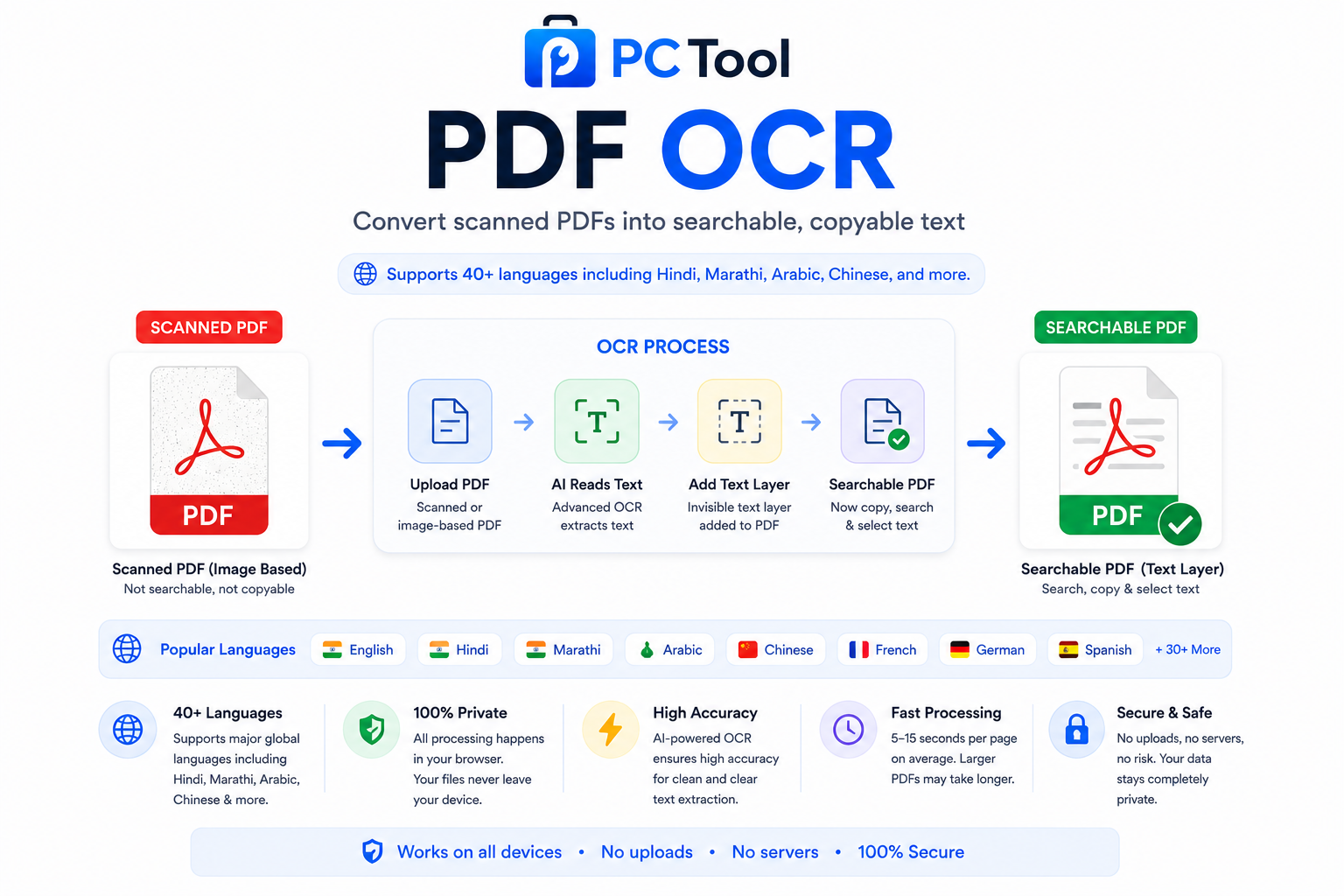
A scanned PDF is essentially a collection of images — even though you can see the text, your computer cannot read it, search it, or copy it. OCR (Optical Character Recognition) solves this by analyzing the image, recognizing the actual letters and words inside, and adding an invisible text layer on top. The result is a PDF that looks identical to the original scan but is now fully searchable, copyable, and editable.
This is one of the most useful document tasks for anyone working with scanned paperwork. Government certificates, old land records, medical reports, legal documents, court orders, school mark sheets, and historical records are almost always available only as scanned PDFs. Without OCR, finding a specific word or copying a paragraph from these documents is impossible — you have to retype everything manually.
Our PDF OCR tool processes scanned PDFs in 40+ languages including English, Hindi, Marathi, Bengali, Gujarati, Tamil, Telugu, Kannada, Malayalam, Punjabi, Urdu, Arabic, Chinese, Japanese, French, German, Spanish, and more. You can process the entire PDF or only specific pages — useful when you need to extract text from a single page in a large document. Once OCR is complete, you download a new PDF with the original visual quality preserved and a searchable text layer added on top.
This is especially useful for Indian users dealing with documents from government portals, district offices, banks, and educational institutions. Old documents scanned years ago can finally be searched, indexed, and used digitally without retyping.
All OCR processing runs entirely in your browser using Tesseract.js. The PDF file is never uploaded to any server, ensuring complete privacy for sensitive personal, legal, and financial documents.
❓ How to Use This Tool
Making a scanned PDF searchable takes just a few clicks. Here is the complete process.
Step 1: Upload Your Scanned PDF
Click the upload zone or drag and drop your scanned PDF onto the page. The tool accepts any standard PDF — single page or multi-page, small or large. The file size and page count are detected and displayed immediately.
Step 2: Select Document Language
Choose the language used in your document from the dropdown. The list is organized by region — Most Common (English, Hindi, Marathi, Arabic, Chinese, French, German, Spanish), South Asian (Bengali, Gujarati, Kannada, Malayalam, Odia, Punjabi, Tamil, Telugu, Urdu), European, and Other categories. Selecting the correct language is the single most important factor for OCR accuracy.
Step 3: Choose Pages to Process
Select All Pages to OCR the entire document. Choose Odd Pages or Even Pages for double-sided scans where only one side has content. Use Custom Range to process specific pages — for example, 1-3, 5, 7-10 will process pages 1, 2, 3, 5, 7, 8, 9, and 10 only. Processing fewer pages is faster and uses less memory.
Step 4: Start OCR Processing
Click Start OCR Processing. A progress bar shows which page is being analyzed and how much is left. OCR typically takes 5 to 15 seconds per page depending on document complexity and device speed. Larger or higher-resolution scans take longer.
Step 5: Download Searchable PDF
Once processing completes, the result panel appears with the new PDF. Optionally rename the file, then click Download Searchable PDF. The output looks identical to your original scan but every word is now searchable using Ctrl+F and copyable using Ctrl+C in any PDF reader.
✓ Features & Benefits
- Convert scanned PDFs into fully searchable, copyable text
- 40+ languages supported including all major Indian languages
- Hindi, Marathi, Bengali, Tamil, Telugu, Kannada, Malayalam, Gujarati, Punjabi, Urdu, Odia
- Original scan quality preserved — invisible text layer added on top
- Process all pages, odd pages, even pages, or custom ranges
- Live progress indicator showing pages completed and remaining
- Output is a standard searchable PDF — works in all PDF readers
- 100% browser-based using Tesseract.js — PDF never uploaded
- Works on mobile, tablet, and desktop without any app install
- No registration or login required — completely free
💡 Tips for Best Results
For best OCR accuracy, make sure your scanned PDF is high quality. Documents scanned at 300 DPI or higher produce significantly better results than low-resolution photos taken with a mobile camera. If the original scan is blurry, tilted, or has shadows, OCR accuracy will drop noticeably.
Always select the correct document language. Selecting English for a Marathi or Hindi document will produce garbage output. If your document contains text in two languages — such as a Marathi government form with English headers — select the dominant language for the main content.
For multi-page documents, processing time adds up quickly. A 50-page PDF can take 5 to 12 minutes on a modern device. If you only need text from specific pages, use the Custom Range option to save significant time.
For old or faded documents, expect lower accuracy — even commercial OCR systems struggle with degraded scans. For critical documents, manually verify the extracted text after OCR is complete.
If your PDF is password protected, unlock it first using our PDF Lock Unlock tool, then run OCR on the unlocked file.
❔ Frequently Asked Questions
What is PDF OCR and why do I need it?
OCR stands for Optical Character Recognition. It analyzes the images inside a scanned PDF and converts them into actual readable text. Without OCR, a scanned PDF is just pictures — you cannot search it, copy text from it, or use Ctrl+F to find a word. After OCR, the PDF looks exactly the same but is fully searchable and copyable.
Does OCR work for Hindi and Marathi documents?
Yes. The tool supports Hindi (Devanagari script), Marathi (Devanagari script), Bengali, Gujarati, Kannada, Malayalam, Odia, Punjabi, Tamil, Telugu, and Urdu. Select the correct language from the dropdown before processing for best accuracy.
Will OCR change how my PDF looks?
No. The original scanned images stay exactly as they are. The tool only adds an invisible text layer behind the images. The output PDF looks identical to your original scan — but every word is now searchable and copyable.
How long does OCR take?
Typical processing time is 5 to 15 seconds per page on a modern device. A 10-page document takes around 1 to 3 minutes. Larger or higher-resolution PDFs take longer. The progress bar shows live status during processing.
Can I OCR only specific pages?
Yes. Choose the Custom Range option and enter pages like 1-3, 5, 7-10. The tool will process only those pages and leave the rest as-is. This is useful for large documents where you only need text from a few pages.
Is my PDF uploaded to any server?
No. All OCR processing runs inside your browser using the Tesseract.js engine. The PDF file is never sent to any external server. This ensures complete privacy for sensitive documents like legal papers, medical reports, government certificates, and financial records.
Why is OCR accuracy not 100% for my document?
OCR accuracy depends on scan quality, language selection, and document condition. Clean, high-resolution scans of printed text produce 95%+ accuracy. Blurry, tilted, faded, or handwritten documents produce lower accuracy. Always select the correct document language for best results.
📌 PDF OCR ऑनलाइन - Scanned PDF ला Searchable बनवा (मराठी, हिंदी, English) काय आहे?
Scanned PDF म्हणजे फक्त image चा संग्रह — text दिसत असला तरी computer त्याला वाचू शकत नाही, search करू शकत नाही, किंवा copy करू शकत नाही. OCR (Optical Character Recognition) हे image विश्लेषण करून आत असलेले शब्द ओळखते आणि वर एक invisible text layer टाकते. परिणामी PDF दिसायला तीच असते, पण आता searchable, copyable आणि editable होते.
सरकारी प्रमाणपत्रे, जुने जमिनीचे दस्तऐवज, वैद्यकीय अहवाल, कायदेशीर कागदपत्रे, न्यायालयीन आदेश, गुणपत्रिका — हे सर्व बहुधा scanned PDF स्वरूपातच मिळतात. OCR शिवाय यातील कोणताही शब्द शोधणे किंवा paragraph copy करणे अशक्य असते — सगळे पुन्हा typing करावे लागते.
आमचे PDF OCR टूल ४० पेक्षा जास्त भाषांमध्ये काम करते — मराठी, हिंदी, बंगाली, गुजराती, तमिळ, तेलुगू, कन्नड, मल्याळम, पंजाबी, उर्दू, English, Arabic, Chinese, Japanese, French, German, Spanish, आणि बरेच काही. संपूर्ण PDF किंवा फक्त निवडक पाने process करा. प्रक्रिया झाल्यावर मूळ visual quality अबाधित ठेवून searchable text layer सह नवीन PDF download करा.
सरकारी पोर्टल, तालुका कार्यालय, बँक, आणि शैक्षणिक संस्थांची कागदपत्रे handle करणाऱ्या भारतीय वापरकर्त्यांसाठी हे विशेष उपयुक्त आहे.
सर्व OCR प्रक्रिया Tesseract.js वापरून ब्राउझरमध्येच होते. PDF कधीही कोणत्याही सर्व्हरवर पाठवली जात नाही.
❓ हे साधन कसे वापरावे
पायरी १: Scanned PDF अपलोड करा
अपलोड झोनवर क्लिक करा किंवा PDF ड्रॅग-ड्रॉप करा. कोणतीही single-page किंवा multi-page PDF चालते. File size आणि page count लगेच दिसतात.
पायरी २: Document Language निवडा
Dropdown मधून तुमच्या document ची भाषा निवडा. Most Common (English, Hindi, Marathi, Arabic, Chinese, French), South Asian (Bengali, Gujarati, Kannada, Malayalam, Odia, Punjabi, Tamil, Telugu, Urdu), European आणि Other श्रेणीत भाषा आहेत. योग्य भाषा निवडणे OCR accuracy साठी सर्वात महत्त्वाचे आहे.
पायरी ३: कोणती पाने Process करायची ते निवडा
All Pages — संपूर्ण document. Odd Pages किंवा Even Pages — दोन्ही बाजूंनी scan केलेल्या documents साठी. Custom Range — विशिष्ट पाने (उदा. 1-3, 5, 7-10). कमी पाने जलद आणि कमी memory वापरतात.
पायरी ४: OCR Start करा
Start OCR Processing दाबा. Progress bar मध्ये कोणते पान चालू आहे आणि किती बाकी आहेत ते दिसते. साधारण प्रत्येक पानाला ५ ते १५ सेकंद लागतात.
पायरी ५: Searchable PDF Download करा
प्रक्रिया पूर्ण झाल्यावर result panel दिसतो. हवे तर नाव बदला, नंतर Download Searchable PDF दाबा. Output दिसायला मूळ scan सारखाच असतो, पण आता प्रत्येक शब्द Ctrl+F ने शोधता येतो आणि Ctrl+C ने copy करता येतो.
✓ वैशिष्ट्ये आणि फायदे
- Scanned PDF ला searchable आणि copyable बनवा
- ४० पेक्षा जास्त भाषा सपोर्ट
- मराठी, हिंदी, बंगाली, तमिळ, तेलुगू, कन्नड, मल्याळम, गुजराती, पंजाबी, उर्दू, ओडिया
- मूळ scan quality जशीच्या तशी — फक्त invisible text layer टाकला जातो
- All pages, Odd, Even किंवा Custom Range
- Live progress indicator — किती पाने झाली आणि बाकी आहेत
- Output standard searchable PDF — सर्व PDF readers मध्ये चालते
- १००% ब्राउझर-आधारित — PDF सर्व्हरवर अपलोड होत नाही
💡 सर्वोत्तम परिणामांसाठी टिपा
OCR accuracy साठी scan quality उत्तम असावी. ३०० DPI किंवा त्यापेक्षा जास्त resolution वर scan केलेले documents चांगले result देतात. Mobile camera ने काढलेले blurry, tilted किंवा shadow असलेले फोटो कमी accuracy देतात.
योग्य भाषा निवडणे अत्यंत महत्त्वाचे — मराठी document साठी English निवडले तर output चुकीचे येते. Document मध्ये दोन भाषा असल्यास main content ची भाषा निवडा.
मोठ्या documents साठी वेळ लागतो — ५० पानांची PDF आधुनिक device वर ५ ते १२ मिनिटे घेऊ शकते. फक्त काही पाने हवी असल्यास Custom Range वापरा.
जुनी किंवा फिकट कागदपत्रे — accuracy कमी असेल. महत्त्वाच्या documents साठी OCR नंतर text manually verify करा.
PDF password-protected असल्यास आधी आमच्या PDF Lock Unlock टूलने unlock करा, मग OCR करा.
❔ वारंवार विचारले जाणारे प्रश्न
PDF OCR म्हणजे काय?
OCR म्हणजे Optical Character Recognition. Scanned PDF मधील image विश्लेषण करून ते actual वाचनीय text मध्ये बदलते. OCR शिवाय scanned PDF फक्त photos असतात — search होत नाही, copy होत नाही, Ctrl+F काम करत नाही. OCR नंतर PDF दिसायला तीच असते पण पूर्ण searchable आणि copyable होते.
मराठी आणि हिंदी documents साठी OCR काम करते का?
होय. टूल मराठी (देवनागरी), हिंदी (देवनागरी), बंगाली, गुजराती, कन्नड, मल्याळम, ओडिया, पंजाबी, तमिळ, तेलुगू आणि उर्दू सपोर्ट करते. Process करण्यापूर्वी dropdown मधून योग्य भाषा निवडा.
OCR मुळे माझी PDF दिसायला बदलेल का?
नाही. मूळ scanned images जशाच्या तशा राहतात. टूल फक्त मागे invisible text layer टाकते. Output PDF दिसायला मूळ scan सारखीच असते — पण प्रत्येक शब्द search आणि copy करता येतो.
OCR ला किती वेळ लागतो?
साधारण प्रत्येक पानाला ५ ते १५ सेकंद लागतात. १० पानांच्या document ला १ ते ३ मिनिटे. मोठ्या किंवा high-resolution PDF ला जास्त वेळ. Progress bar मध्ये live status दिसतो.
फक्त निवडक पाने OCR करता येतात का?
होय. Custom Range पर्याय निवडा आणि 1-3, 5, 7-10 असे टाका. फक्त त्याच पानांचे OCR होते. मोठ्या document मधून फक्त काही पाने हवी असल्यास उपयुक्त.
माझी PDF सर्व्हरवर जाते का?
नाही. सर्व OCR Tesseract.js engine वापरून ब्राउझरमध्येच होते. PDF कोणत्याही सर्व्हरवर पाठवली जात नाही — कायदेशीर कागदपत्रे, वैद्यकीय अहवाल, सरकारी प्रमाणपत्रे यांसाठी संपूर्ण privacy.
माझ्या document साठी OCR accuracy १००% का नाही?
OCR accuracy scan quality, भाषा निवड, आणि document स्थिती यावर अवलंबून असते. स्वच्छ, high-resolution, printed text — ९५%+ accuracy. Blurry, tilted, फिकट किंवा handwritten — कमी accuracy. योग्य भाषा निवडल्यास उत्तम result मिळतो.