PDF to Image

Convert PDF pages to high-quality images. Choose JPEG, JPG, or PNG output, set target size per image. Free, private, browser-based.
Drop PDF here or tap to upload
Convert all pages to images · Max 50 MB

📌 What is PDF to Image Converter Online Free - Convert PDF Pages to JPG, PNG?

Converting PDF pages to images is one of the most frequently needed document tasks for students, professionals, and government form applicants alike. A PDF may be the standard format for sharing documents, but there are countless situations where you need individual pages as image files — for uploading to portals that accept only JPG or PNG, for inserting a page into a presentation, for sharing a single page on WhatsApp, or for attaching a scanned document page to an email without sending the entire file.

Government portals often require specific document pages as individual images with a maximum file size — for example, uploading a single page of your Aadhaar, Ration Card, or income certificate as a JPG under 200 KB. Students submitting assignments to university portals, job seekers uploading individual certificates, and medical patients sharing a single lab report page to insurance portals all encounter this need regularly.

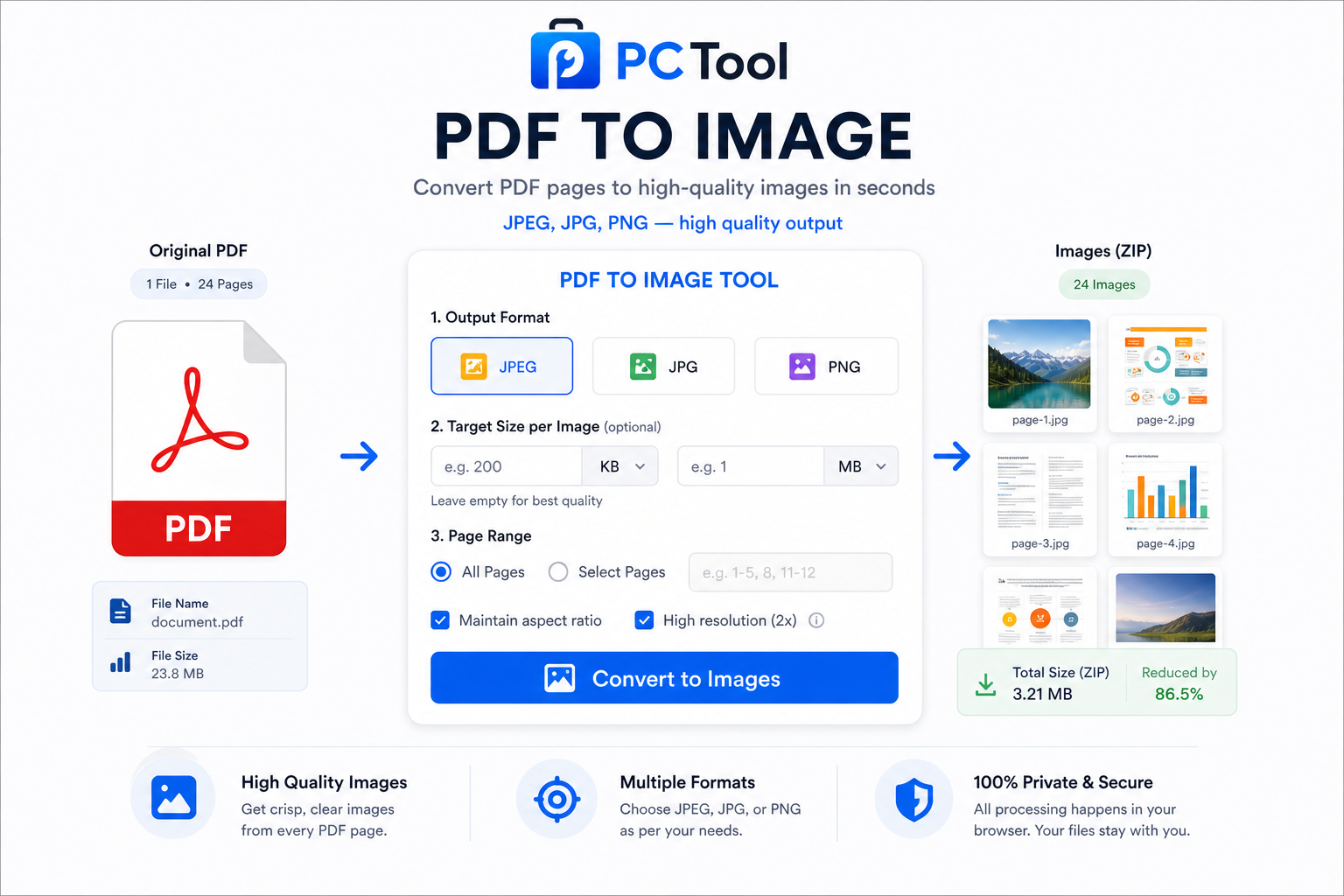
Our PDF to Image tool converts every page of your PDF into a separate high-quality image. You can choose between JPEG, JPG, and PNG output formats depending on what the target portal or application requires. If the portal has a file size limit, simply enter your target size in KB or MB and the tool will compress each image precisely to meet that requirement — no manual trial and error needed.

All processing happens entirely in your browser using the pdf.js library. Your PDF file is never uploaded to any server, ensuring complete privacy for sensitive documents like Aadhaar scans, bank statements, medical reports, and legal certificates.
Tutorial step

How to Use This Tool

Converting your PDF pages to images takes less than a minute. Here is the complete process.

Step 1: Upload Your PDF
Click the upload zone or drag and drop your PDF file onto the page. The tool accepts any standard PDF up to 50 MB. Once uploaded, a thumbnail preview of all pages appears so you can confirm you have the right file before converting.

Step 2: Choose Output Format
Select JPEG, JPG, or PNG from the format options. JPEG and JPG produce the same image — use whichever extension the target system requires. PNG is a lossless format and produces larger files but with no quality loss, which is useful when the image contains text that must remain sharp and readable.

Step 3: Set Target Size per Image (Optional)
If the portal you are submitting to has a file size limit such as "image must be under 200 KB," enter that value in the KB or MB field. The tool will automatically compress each page image to meet your target without exceeding it. Leave this field empty if you want the best possible quality with no size restriction.

Step 4: Convert
Click "Convert to Images." The tool renders each PDF page at 2x resolution for crisp output, then applies compression if a target size was specified. A progress indicator shows which page is being processed.

Step 5: Download
For single-page PDFs, a direct download button appears with an optional rename field. For multi-page PDFs, each page image is listed individually with its file size — you can download pages one by one or download all pages together as a ZIP file.

Features & Benefits

  • Convert every page of a PDF into a separate image file
  • Output formats: JPEG, JPG, and PNG
  • Target size per image in KB or MB for portal submissions
  • Pages rendered at 2x resolution for crisp, readable output
  • Individual page download or bulk ZIP download for multi-page PDFs
  • Full page preview before conversion so you know what to expect
  • Supports any standard PDF up to 50 MB
  • 100% browser-based using pdf.js — PDF never uploaded to any server
  • Works on mobile, tablet, and desktop without any app install
  • No registration or login required — completely free

💡 Tips for Best Results

For government and bank portal submissions, JPEG is the most widely accepted format. If the portal specifies a maximum file size such as 100 KB or 200 KB, always use the target size field — the tool handles compression automatically and you will not need to manually reduce quality or resolution.

For documents containing important text such as certificates, affidavits, or legal notices, choose PNG if there is no file size restriction. PNG preserves text sharpness perfectly since it does not use lossy compression.

If you only need one specific page from a multi-page PDF, use the individual download buttons in the result list rather than downloading the full ZIP. This saves time and avoids downloading unnecessary pages.

For WhatsApp or email sharing of a single document page, JPEG at under 500 KB is the most practical choice — it loads quickly on mobile networks and is compatible with all messaging apps.

Frequently Asked Questions

How do I convert a PDF to images?

Upload your PDF, select JPEG, JPG, or PNG as the output format, optionally set a target size per image, then click Convert. Each page of the PDF becomes a separate downloadable image file.

What is the difference between JPEG and JPG output?

They are exactly the same image format — just different file extensions. Some portals and systems require the .jpeg extension while others expect .jpg. Choose whichever matches what the target system requires.

Can I set a specific file size for each image?

Yes. Enter your required size in the KB or MB field before converting. The tool compresses each page image to be equal to or smaller than your target. The output will never exceed the size you set.

Does the target size work for PNG images too?

Yes. Since PNG is a lossless format, the tool reduces the image resolution until the file fits within your target size. For very small targets, JPEG will generally produce better-looking results than PNG.

Can I download just one page from a multi-page PDF?

Yes. After conversion, each page is listed individually with its own download button. You can download any specific page without downloading the rest.

Is my PDF uploaded to a server?

No. The entire conversion runs inside your browser using the pdf.js library. Your PDF file is never sent to any external server. This ensures complete privacy for sensitive documents such as bank statements, Aadhaar scans, medical reports, and legal certificates.

What is the maximum PDF size supported?

The tool supports PDFs up to 50 MB. For very large files with many high-resolution pages, conversion may take slightly longer on low-powered devices but will complete fully in the browser.

📌 PDF ते Image कन्व्हर्टर ऑनलाइन - PDF पाने JPG, PNG मध्ये बदला काय आहे?

PDF पाने image मध्ये रूपांतरित करणे हे विद्यार्थी, नोकरदार आणि सरकारी कामकाज करणाऱ्यांसाठी नेहमीच लागणारे काम आहे. PDF हा दस्तऐवज शेअर करण्याचा मानक फॉरमॅट असला तरी, अनेक पोर्टल्स फक्त JPG किंवा PNG फाइल स्वीकारतात — एकट्या पानाची image WhatsApp वर पाठवायची असते, presentation मध्ये घालायची असते, किंवा email ला पूर्ण PDF न जोडता एकच पान पाठवायचे असते.

सरकारी पोर्टल्सवर आधार, रेशन कार्ड, किंवा उत्पन्नाचा दाखला एकट्या पानाची JPG image म्हणून आणि जास्तीत जास्त ठराविक KB मध्ये अपलोड करावी लागते. विद्यापीठ पोर्टल्सवर प्रमाणपत्रे, नोकरी अर्जात वेगळी कागदपत्रे, आणि विम्यासाठी वैद्यकीय अहवालाचे एकटे पान — अशा कामांसाठी हे टूल उपयुक्त आहे.

आमचे PDF to Image टूल PDF च्या प्रत्येक पानाची स्वतंत्र उच्च-दर्जाची image तयार करते. JPEG, JPG किंवा PNG फॉरमॅट निवडता येतो. पोर्टलवर file size मर्यादा असल्यास KB किंवा MB मध्ये target size सेट करा — टूल प्रत्येक image आपोआप त्या मर्यादेत आणते.

सर्व प्रक्रिया pdf.js library वापरून ब्राउझरमध्येच होते. तुमची PDF फाइल कोणत्याही सर्व्हरवर कधीही अपलोड होत नाही.
Tutorial step

हे साधन कसे वापरावे

पायरी १: PDF अपलोड करा
अपलोड झोनवर क्लिक करा किंवा PDF ड्रॅग-ड्रॉप करा. जास्तीत जास्त ५० MB PDF सपोर्ट. अपलोड झाल्यावर सर्व पानांचे thumbnail preview दिसतात.

पायरी २: Output Format निवडा
JPEG, JPG किंवा PNG निवडा. JPEG आणि JPG हे एकच format — फक्त extension वेगळे. PNG lossless आहे त्यामुळे text असलेल्या documents साठी उत्तम, पण file size जास्त असतो.

पायरी ३: Target Size सेट करा (ऐच्छिक)
पोर्टलवर "image २०० KB पेक्षा कमी असावी" असे असल्यास KB किंवा MB फील्डमध्ये टाका. टूल प्रत्येक पानाची image त्या मर्यादेत आणते. उत्तम quality हवी असल्यास हे field रिकामे ठेवा.

पायरी ४: Convert करा
"Convert to Images" दाबा. प्रत्येक पान 2x resolution वर render होते. किती पाने झाली ते progress indicator मध्ये दिसते.

पायरी ५: Download करा
एक पान असल्यास थेट download button येतो, नाव बदलण्याचा पर्यायही आहे. अनेक पाने असल्यास प्रत्येक पानाची image वेगळी download करता येते, किंवा सर्व एकत्र ZIP मध्ये download करता येतात.

वैशिष्ट्ये आणि फायदे

  • PDF च्या प्रत्येक पानाची स्वतंत्र image
  • Output format: JPEG, JPG आणि PNG
  • KB किंवा MB मध्ये target size — पोर्टल submission साठी
  • 2x resolution — स्पष्ट आणि वाचनयोग्य output
  • प्रत्येक पान स्वतंत्र download किंवा सर्व एकत्र ZIP
  • Convert करण्यापूर्वी सर्व पानांचे preview
  • ५० MB पर्यंत PDF सपोर्ट
  • १००% ब्राउझर-आधारित — PDF सर्व्हरवर अपलोड होत नाही

💡 सर्वोत्तम परिणामांसाठी टिपा

सरकारी आणि बँकिंग पोर्टल्ससाठी JPEG सर्वाधिक स्वीकारला जातो. File size मर्यादा असल्यास target size field वापरा — manually compress करण्याची गरज नाही.

प्रमाणपत्रे, affidavit किंवा कायदेशीर कागदपत्रे यांच्यासाठी PNG निवडा — text अधिक स्पष्ट राहतो. File size मर्यादा नसल्यासच PNG वापरा.

अनेक पानांच्या PDF मधून फक्त एखादे पान हवे असल्यास result list मधून त्या पानाचे individual download button वापरा.

WhatsApp किंवा email वर एकटे पान पाठवण्यासाठी ५०० KB पेक्षा कमी JPEG सर्वात practical आहे.

वारंवार विचारले जाणारे प्रश्न

PDF ते image कसे करावे?

PDF अपलोड करा, JPEG, JPG किंवा PNG format निवडा, हवे तर target size सेट करा, आणि Convert दाबा. PDF च्या प्रत्येक पानाची स्वतंत्र image download करता येते.

JPEG आणि JPG मध्ये काय फरक आहे?

दोन्ही एकाच format चे वेगळे extension आहेत. काही पोर्टल्स .jpeg मागतात, काही .jpg — तुमच्या portal नुसार निवडा.

प्रत्येक image साठी specific file size सेट करता येतो का?

होय. KB किंवा MB field मध्ये target टाका. टूल प्रत्येक पानाची image त्या मर्यादेत आणते — output कधीही target पेक्षा जास्त होत नाही.

PNG साठीही target size काम करतो का?

होय. PNG lossless असल्याने टूल image resolution कमी करून target पूर्ण करते. खूप कमी target size साठी JPEG जास्त चांगले दिसेल.

अनेक पानांच्या PDF मधून एकटे पान download करता येते का?

होय. Convert झाल्यावर प्रत्येक पानाचे individual download button असते. हव्या त्याच पानाची image download करा.

माझी PDF सर्व्हरवर जाते का?

नाही. सर्व conversion pdf.js library वापरून ब्राउझरमध्येच होते. PDF कोणत्याही सर्व्हरवर पाठवली जात नाही — आधार, बँक स्टेटमेंट, वैद्यकीय अहवाल यांसारख्या संवेदनशील कागदपत्रांसाठी संपूर्ण privacy.

जास्तीत जास्त किती MB ची PDF चालते?

टूल ५० MB पर्यंतच्या PDF ला सपोर्ट करते. मोठ्या आणि अनेक पानांच्या PDF ला थोडा जास्त वेळ लागू शकतो, पण conversion ब्राउझरमध्येच पूर्ण होते.