PDF Remove Pages

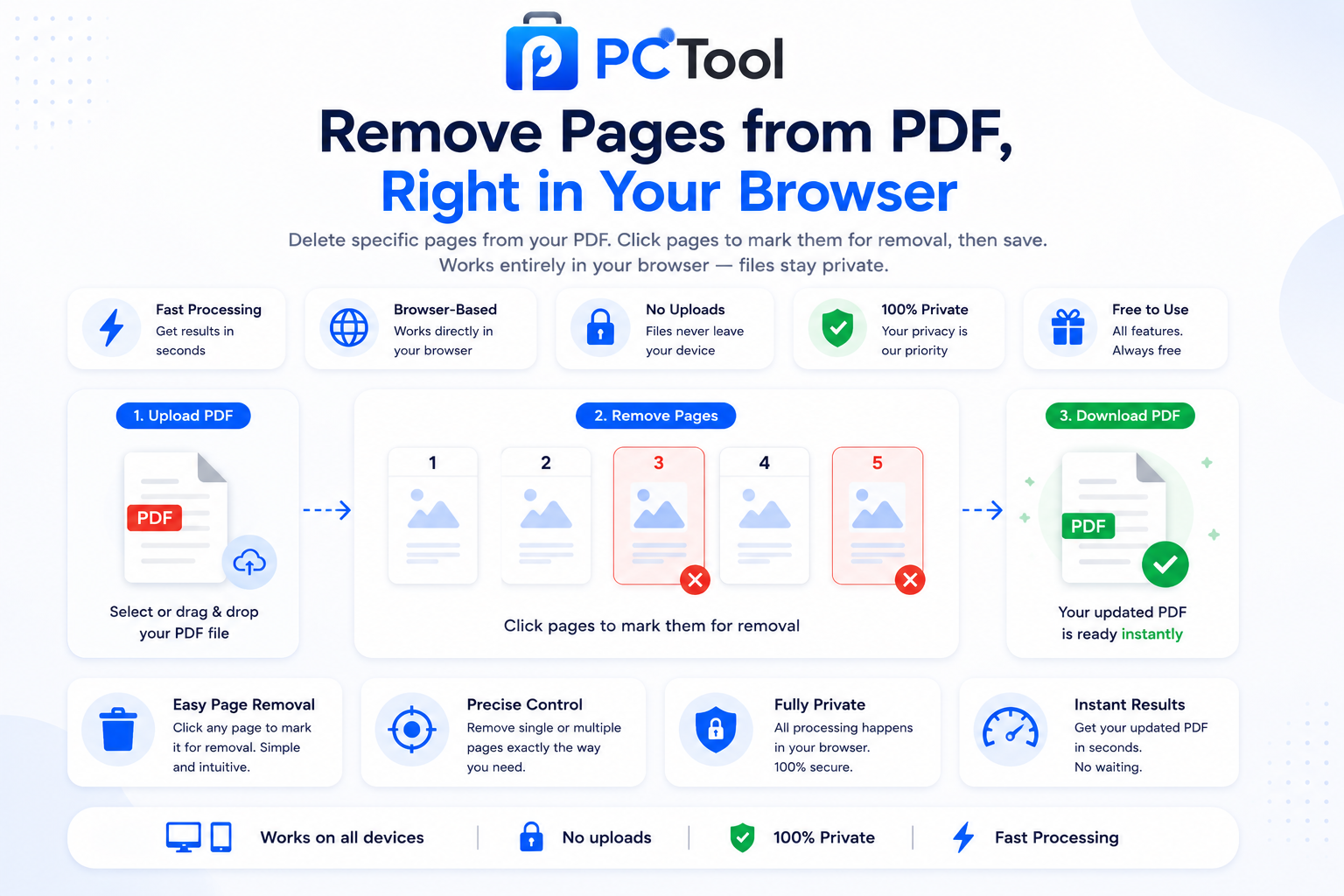
Delete specific pages from your PDF. Click pages to mark them for removal, then save. Works entirely in your browser — files stay private.

Drop PDF file here or click to upload
Click pages to mark them for removal
Quick Select
All processing happens in your browser. Your PDF never leaves your device.

📌 What is PDF Remove Pages Online Free - Delete Pages from PDF?

Removing unwanted pages from a PDF is one of the most frequently needed document edits. Scanned documents often include blank pages, separator sheets, accidentally captured pages, or duplicate pages that need to be deleted before the file can be shared, submitted, or printed. Long reports may have draft sections that need removal in the final version. Bank statements and government PDFs sometimes include cover pages, terms and conditions sections, or marketing inserts that you do not need.

The need to delete PDF pages comes up constantly in everyday work. A CSC operator scanning customer documents often ends up with blank back-side pages from duplex scanning that need removal. A student preparing project reports needs to remove draft pages before submission. A loan applicant downloading bank statements may want to keep only the relevant months and remove the rest. Lawyers preparing case files often need to extract specific exhibits and remove the surrounding pages. In all these cases, manually re-creating the document is time-consuming — deleting pages directly is dramatically faster.

Our PDF Remove Pages tool shows every page of your PDF as a thumbnail in a grid. Simply click any page to mark it for removal — selected pages turn red so you can clearly see what will be deleted. Click again to unmark a page. The Quick Select buttons let you remove all odd pages or all even pages in one click — useful for cleaning up duplex scans where one side is blank. The Clear Selection button removes all marks if you want to start over.

Once you have selected the pages to remove, click Remove Selected Pages. The tool generates a new PDF containing only the pages you kept, preserving original quality, formatting, fonts, and embedded images.

All processing happens entirely in your browser using the pdf-lib library. Your PDF file is never uploaded to any server, ensuring complete privacy for sensitive documents.
Tutorial step

How to Use This Tool

Removing pages from your PDF takes about a minute. Here is the complete process.

Step 1: Upload Your PDF
Click the upload zone or drag and drop your PDF onto the page. The tool reads the file and displays every page as a numbered thumbnail in a grid layout.

Step 2: Click Pages to Mark for Removal
Click any page thumbnail to mark it for deletion. Marked pages turn red, making it easy to see exactly which pages will be removed. Click a marked page again to unmark it. You can mark as many pages as you want, in any order — they do not need to be consecutive.

Step 3: Use Quick Select (Optional)
Click Remove Odd to mark all odd-numbered pages (1, 3, 5, and so on). Click Remove Even to mark all even-numbered pages (2, 4, 6, and so on). These shortcuts are extremely useful for duplex scans where every blank back-side page needs removal. Click Clear Selection to unmark all pages and start fresh.

Step 4: Verify Your Selection
The Selection display on the right shows how many pages are marked for removal and how many will remain. Double-check this before proceeding — once removed, the pages cannot be recovered without re-uploading the original.

Step 5: Click Remove Selected Pages
Once your selection is correct, click Remove Selected Pages. The tool generates a new PDF containing only the pages you did not mark.

Step 6: Download
The result panel shows the cleaned PDF with the new page count. Optionally rename the file, then click Download to save it to your device.

Features & Benefits

  • Visual click-to-remove with red highlighting on selected pages
  • Remove Odd shortcut — clears all odd-numbered pages in one click
  • Remove Even shortcut — clears all even-numbered pages in one click
  • Clear Selection button to unmark all pages and start over
  • Live count of pages selected and pages remaining
  • Original quality, formatting, fonts, and embedded images preserved
  • No limit on number of pages — works for documents of any length
  • Prevents removing all pages — at least one page must remain
  • Works on mobile, tablet, and desktop with full touch support
  • 100% browser-based using pdf-lib — PDF never uploaded to any server

💡 Tips for Best Results

For duplex scans where every back-side page is blank, use the Remove Even or Remove Odd shortcut depending on which side is blank. This is dramatically faster than clicking each blank page individually. Most document scanners produce blank pages on even-numbered positions, so Remove Even is the most common cleanup action.

When removing pages from official documents like bank statements, ITR PDFs, and government certificates, always keep the original file as backup. Once pages are removed and the file is saved, the deletion is permanent — there is no undo after download.

For reports and projects with draft sections to remove, click pages in groups by visual similarity. Pages with similar layouts often belong to the same section that needs deletion. The grid view makes it easy to spot these patterns quickly.

If you only need to keep a few pages from a long PDF, instead of clicking dozens of pages to remove, mark only the pages you want to keep and use a PDF split tool to extract them. This is faster than removing everything else.

For PDFs with sensitive sections — like a personal section in an otherwise shareable document — remove the sensitive pages before sharing. The output PDF contains no trace of the removed pages.

Frequently Asked Questions

How do I delete pages from a PDF?

Upload your PDF, click any page thumbnail to mark it for removal (it turns red), then click Remove Selected Pages. The tool generates a new PDF containing only the pages you did not mark.

Can I remove multiple pages at once?

Yes. Click as many pages as you want — they do not need to be consecutive. All marked pages are removed in a single step when you click Remove Selected Pages. Use Quick Select shortcuts to mark all odd or even pages instantly.

What is the Remove Odd and Remove Even shortcut for?

These shortcuts mark all odd-numbered or even-numbered pages in one click. Most useful for duplex scans where every back-side page is blank — you can clean up the entire document instantly instead of clicking each blank page.

Can I undo a removal after downloading?

No. Once the file is downloaded, the removed pages cannot be recovered from the new PDF. Always keep the original file as backup before removing pages from important documents.

Can I remove all pages from a PDF?

No. At least one page must remain in the PDF — a document with zero pages is not valid. The tool prevents you from selecting all pages so the result is always a usable file.

Will removing pages affect the quality of remaining pages?

No. The tool removes pages without re-rendering or compressing the others. The quality, formatting, fonts, and images of the kept pages are preserved exactly as in the original PDF.

Is my PDF uploaded to a server?

No. The entire process runs inside your browser using the pdf-lib library. Your PDF file is never sent to any external server. This makes the tool completely safe for confidential documents like bank statements, legal papers, medical reports, and personal records.

📌 PDF मधून पाने कशी काढावी - PDF Remove Pages Tool ऑनलाइन काय आहे?

PDF मधून नको असलेली पाने काढून टाकणे हे रोजच्या कामात अत्यंत आवश्यक आहे. Scanned documents मध्ये बहुधा blank pages, separator sheets, चुकून आलेली पाने, किंवा duplicate पाने असतात — share, submit किंवा print करण्यापूर्वी ती काढावी लागतात. लांबलचक reports मध्ये final version आधी draft sections काढाव्या लागतात. बँक statements आणि सरकारी PDF मध्ये कधी कधी cover pages, terms and conditions, किंवा marketing inserts असतात ज्यांची गरज नसते.

CSC operators duplex scanning केल्यानंतर blank back-side पाने काढाव्या लागतात. विद्यार्थ्यांना project reports submission आधी draft पाने काढाव्या लागतात. Loan अर्जदारांना बँक statement मधील फक्त relevant महिने ठेवायचे असतात. वकील case file मध्ये specific exhibits ठेवून आजूबाजूची पाने काढतात. Manually पुन्हा document तयार करणे वेळखाऊ — पाने थेट काढणे खूप जलद.

आमचे PDF Remove Pages टूल PDF च्या प्रत्येक पानाचा thumbnail grid मध्ये दाखवते. कोणतेही पान click करून removal साठी mark करा — selected पाने लाल होतात, काय delete होणार हे स्पष्ट दिसते. पुन्हा click केल्यास unmark होते. Quick Select buttons एका क्लिकमध्ये सर्व odd किंवा even पाने काढतात — duplex scans साठी अत्यंत उपयुक्त. Clear Selection button सर्व marks काढते.

पाने निवडल्यावर Remove Selected Pages दाबा. टूल नवीन PDF तयार करते — फक्त ठेवलेली पाने सोबत, मूळ quality, formatting, fonts आणि images तशीच ठेवून.

सर्व प्रक्रिया pdf-lib library वापरून ब्राउझरमध्येच होते. PDF कधीही कोणत्याही सर्व्हरवर पाठवली जात नाही.
Tutorial step

हे साधन कसे वापरावे

पायरी १: PDF अपलोड करा
अपलोड झोनवर क्लिक करा किंवा PDF ड्रॅग-ड्रॉप करा. टूल फाइल वाचून प्रत्येक पानाचा numbered thumbnail grid मध्ये दाखवते.

पायरी २: काढायची पाने Mark करा
कोणतेही thumbnail click करून deletion साठी mark करा. Marked पाने लाल होतात — कोणती पाने काढली जाणार हे स्पष्ट दिसते. पुन्हा click केल्यास unmark. हवी तितकी पाने mark करा — consecutive असण्याची गरज नाही.

पायरी ३: Quick Select वापरा (ऐच्छिक)
Remove Odd — सर्व odd-numbered पाने (1, 3, 5...) mark करते. Remove Even — सर्व even-numbered पाने (2, 4, 6...) mark करते. Duplex scans साठी अत्यंत उपयुक्त — प्रत्येक blank पान वेगळे क्लिक करण्याची गरज नाही. Clear Selection सर्व marks काढते.

पायरी ४: Selection तपासा
उजव्या बाजूला Selection display मध्ये किती पाने काढली जातील आणि किती राहतील हे दिसते. पुढे जाण्यापूर्वी हे एकदा तपासा — पाने काढल्यावर मूळ PDF पुन्हा अपलोड केल्याशिवाय परत मिळवता येत नाहीत.

पायरी ५: Remove Selected Pages दाबा
Selection बरोबर असल्यास Remove Selected Pages दाबा. नवीन PDF तयार होते — फक्त mark नसलेली पाने सोबत.

पायरी ६: Download करा
Result panel मध्ये cleaned PDF आणि नवीन page count दिसते. हवे तर नाव बदला, नंतर Download दाबा.

वैशिष्ट्ये आणि फायदे

  • Click-to-remove — selected पाने लाल highlight सह
  • Remove Odd shortcut — एका क्लिकमध्ये सर्व odd पाने
  • Remove Even shortcut — एका क्लिकमध्ये सर्व even पाने
  • Clear Selection — सर्व marks काढून पुन्हा सुरू
  • किती पाने निवडली आणि किती राहतील हे live दिसते
  • मूळ quality, formatting, fonts आणि images तशीच राहतात
  • पानांच्या संख्येवर मर्यादा नाही
  • सर्व पाने काढता येत नाहीत — किमान एक पान राहाते
  • Mobile, tablet, desktop सर्वत्र — पूर्ण touch support
  • १००% ब्राउझर-आधारित — PDF सर्व्हरवर अपलोड होत नाही

💡 सर्वोत्तम परिणामांसाठी टिपा

Duplex scan मध्ये प्रत्येक back-side पान blank असल्यास Remove Even किंवा Remove Odd shortcut वापरा (कोणती बाजू blank आहे त्यानुसार). प्रत्येक blank पान क्लिक करण्यापेक्षा खूप जलद. बहुतेक scanners even-numbered positions वर blank पाने तयार करतात, त्यामुळे Remove Even सर्वात सामान्य cleanup आहे.

बँक statements, ITR PDF, सरकारी प्रमाणपत्रे यांसारख्या official documents मधून पाने काढताना मूळ फाइल नेहमी backup म्हणून ठेवा. Save झाल्यावर deletion कायमस्वरूपी आहे — download नंतर undo नाही.

Reports आणि projects मधून draft sections काढताना similar layout असलेली पाने एकत्र असतात — त्यांना group म्हणून mark करणे सोपे. Grid view मध्ये असे patterns लगेच दिसतात.

लांब PDF मधून फक्त काही पाने ठेवायची असल्यास सर्व नको असलेली पाने mark करण्यापेक्षा हवी ती पाने वेगळी काढण्यासाठी PDF split टूल वापरा. हे जास्त जलद आहे.

संवेदनशील sections असलेल्या PDF साठी (एखादे personal पान असलेली shareable PDF) — share करण्यापूर्वी ती पाने काढून टाका. Output PDF मध्ये काढलेल्या पानांचा कोणताही trace राहत नाही.

वारंवार विचारले जाणारे प्रश्न

PDF मधून पाने कशी काढावी?

PDF अपलोड करा, कोणतेही thumbnail click करून removal साठी mark करा (लाल होते), नंतर Remove Selected Pages दाबा. नवीन PDF तयार होते — फक्त ठेवलेली पाने सोबत.

एकाच वेळी अनेक पाने काढता येतात का?

होय. हवी तितकी पाने click करा — consecutive असण्याची गरज नाही. Remove Selected Pages दाबल्यावर सर्व marked पाने एकाच पायरीत काढली जातात. Quick Select shortcuts ने सर्व odd किंवा even पाने त्वरित mark करा.

Remove Odd आणि Remove Even shortcut कशासाठी?

सर्व odd-numbered किंवा even-numbered पाने एका क्लिकमध्ये mark करण्यासाठी. Duplex scans मध्ये प्रत्येक back-side पान blank असल्यास सर्वात उपयुक्त — प्रत्येक blank पान क्लिक करण्याची गरज नाही.

Download नंतर removal undo करता येते का?

नाही. Download झाल्यावर काढलेली पाने नवीन PDF मधून परत मिळवता येत नाहीत. महत्त्वाच्या documents मधून पाने काढण्यापूर्वी मूळ फाइल नेहमी backup म्हणून ठेवा.

PDF मधील सर्व पाने काढता येतात का?

नाही. PDF मध्ये किमान एक पान असावे लागते — शून्य पाने असलेली PDF valid नसते. टूल सर्व पाने select होण्यापासून प्रतिबंधित करते.

पाने काढल्याने उरलेल्या पानांची quality कमी होते का?

नाही. टूल इतर पाने पुन्हा render किंवा compress न करता पाने काढते. ठेवलेल्या पानांची quality, formatting, fonts आणि images मूळ PDF प्रमाणेच राहतात.

माझी PDF सर्व्हरवर जाते का?

नाही. संपूर्ण प्रक्रिया pdf-lib library वापरून ब्राउझरमध्येच होते. PDF कोणत्याही external सर्व्हरवर पाठवली जात नाही — बँक statements, कायदेशीर कागदपत्रे, वैद्यकीय अहवाल, वैयक्तिक records यांसाठी संपूर्ण privacy.