PDF Rearrange

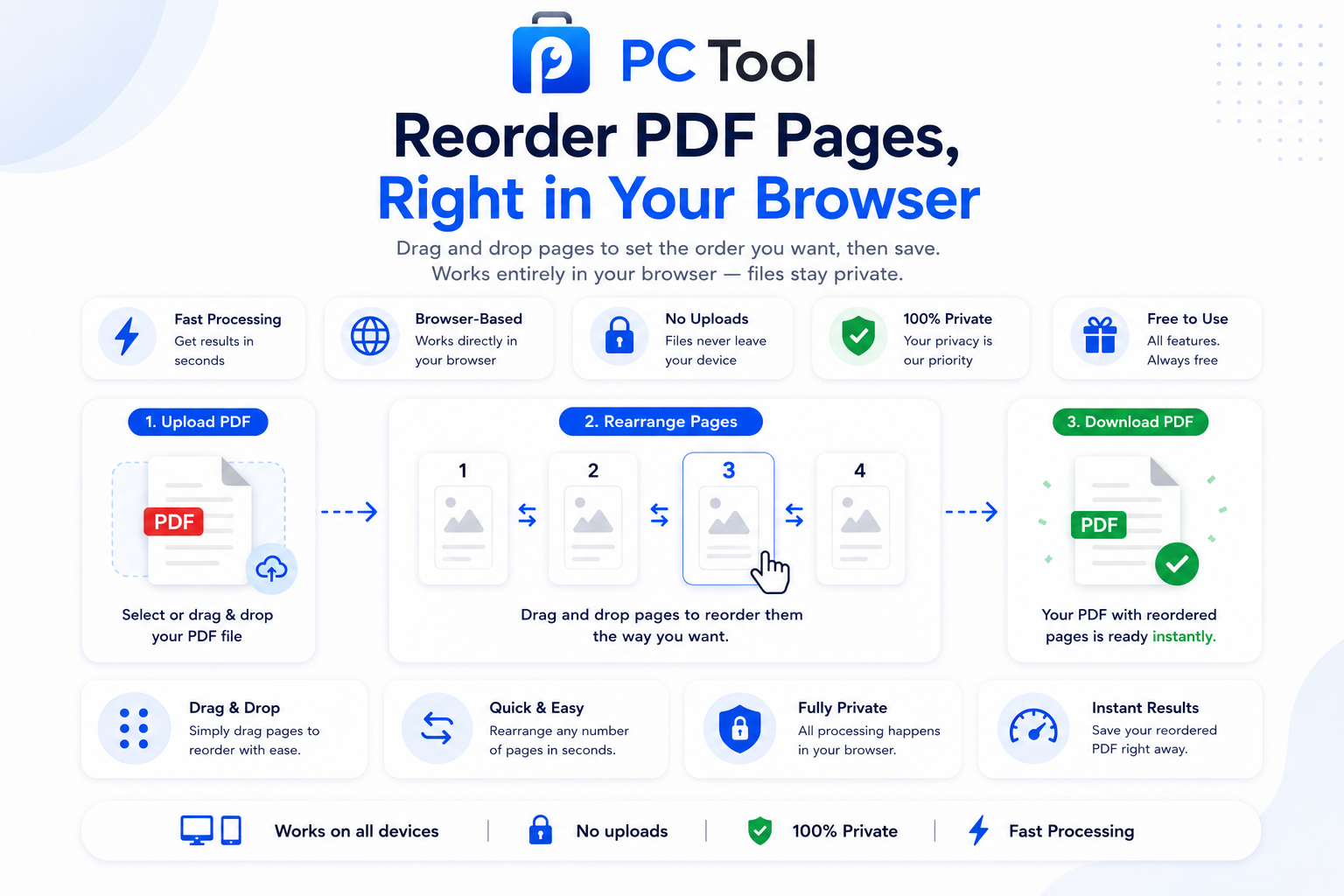
Reorder pages in your PDF. Drag and drop pages to set the order you want, then save. Works entirely in your browser — files stay private.

Drop PDF file here or click to upload
Upload a PDF to rearrange pages
Quick Actions
All processing happens in your browser. Your PDF never leaves your device.

📌 What is PDF Rearrange Online Free - Reorder PDF Pages by Drag and Drop?

Rearranging pages in a PDF is one of the most common document fixes needed in everyday work. Scanned documents often come out in the wrong order — pages 3 and 4 may end up before pages 1 and 2, or duplex scans may interleave pages incorrectly. Multi-page certificates, project reports, and bound documents scanned in batches frequently need page reordering before they can be submitted, printed, or archived properly.

The need to rearrange pages comes up in many real-world situations. A student scanning a multi-page certificate may need to fix the page order before uploading to a college portal. A CSC operator scanning customer documents often needs to reorder pages so the most important ones appear first. A lawyer assembling a case file may need to rearrange exhibits in the order required by court rules. An office worker preparing a tender document may need to move appendices to the correct position. In all these cases, manually re-scanning is time-consuming — rearranging pages digitally is dramatically faster.

Our PDF Rearrange tool shows every page of your PDF as a thumbnail in a grid. Simply drag any page to its new position — the pages reorder visually and the new sequence is shown live. You can use the Reverse All button to flip the entire page order in one click, useful for documents scanned bottom-to-top. The Reset Order button returns everything to the original sequence if you make a mistake.

Once your pages are in the right order, click Save Rearranged PDF. The tool generates a new PDF with pages in the exact sequence you set, preserving the original quality, formatting, fonts, and embedded images.

All processing happens entirely in your browser using the pdf-lib library. Your PDF file is never uploaded to any server, ensuring complete privacy for confidential documents.
Tutorial step

How to Use This Tool

Reordering pages in your PDF takes about a minute. Here is the complete process.

Step 1: Upload Your PDF
Click the upload zone or drag and drop your PDF onto the page. The tool reads the file and displays every page as a numbered thumbnail in a grid layout.

Step 2: Review Current Order
Each thumbnail shows the page number from the original PDF. Take a moment to identify which pages need to move and where they should go. The current order is shown live in the New Order section on the right.

Step 3: Drag Pages to Reorder
Click and hold any page thumbnail, then drag it to its new position. The other pages shift automatically to make room. Drop the page where you want it. Repeat for any other pages that need to move. There is no limit to how many times you can rearrange — keep dragging until the order is exactly right.

Step 4: Use Quick Actions (Optional)
Click Reverse All to flip the entire page order in one click. This is useful for documents scanned bottom-to-top or in reverse sequence. Click Reset Order if you make mistakes and want to start over from the original sequence.

Step 5: Verify the New Order
Check the New Order display on the right. It shows the final sequence of pages — for example, 3, 1, 2, 5, 4 — confirming exactly which order the saved PDF will follow.

Step 6: Click Save Rearranged PDF
Once everything is in the correct order, click Save Rearranged PDF. The tool generates a new PDF with pages in the exact sequence you set.

Step 7: Download
The result panel shows the rearranged PDF. Optionally rename the file, then click Download to save it to your device.

Features & Benefits

  • Drag-and-drop page reordering with visual thumbnails
  • Reverse All button to flip the entire page order in one click
  • Reset Order button to return to the original sequence
  • Live preview of the new page order before saving
  • Original page quality, formatting, fonts, and images preserved
  • No limit on number of pages — works for documents of any length
  • Works on mobile, tablet, and desktop with full touch and mouse support
  • 100% browser-based using pdf-lib — PDF never uploaded to any server
  • No watermark added to the rearranged output
  • No registration or login required — completely free

💡 Tips for Best Results

For documents scanned in batches where the order is mixed up, the fastest approach is to identify the correct first page, drag it to position 1, then move the second page next, and continue from there. Working linearly from the beginning is usually faster than fixing pages one at a time in random positions.

If your PDF was scanned bottom-to-top — common when documents are placed face-down and pulled through scanners — use the Reverse All button to flip everything in one click. This is much faster than dragging each page individually.

For multi-document submissions where each section needs to be in a specific order (application form first, then ID proof, then supporting documents), arrange the pages in the same order the submission portal requires. Many portals reject documents with sections in the wrong order.

If you only need to remove certain pages rather than reorder them, this tool keeps all pages — there is currently no delete option. For page removal, use a dedicated PDF page deletion tool, or simply rearrange unwanted pages to the end and use a PDF split tool to keep only the pages you want.

For extremely large PDFs (100+ pages), thumbnail generation may take a few seconds on slower devices. Be patient and wait for all pages to load before starting to drag.

Frequently Asked Questions

How do I reorder pages in a PDF?

Upload your PDF, then drag any page thumbnail to its new position. The other pages shift automatically. Repeat until the order is correct, then click Save Rearranged PDF to download the result.

Can I reverse all pages at once?

Yes. The Reverse All button flips the entire page order in a single click. This is especially useful for documents scanned bottom-to-top or in reverse sequence — saves significant time compared to dragging each page individually.

What if I make a mistake while rearranging?

Click the Reset Order button to return all pages to their original sequence. Then start the rearrangement again from scratch. There is no undo for individual moves, but Reset is always available.

Will rearranging affect the quality of the PDF?

No. The tool moves pages without re-rendering or compressing them. The original quality, formatting, fonts, and embedded images are preserved exactly in the rearranged output.

Can I delete pages with this tool?

The current tool only rearranges pages — it does not delete them. To remove unwanted pages, move them to the end of the document, then use a PDF split tool to keep only the pages you want, or wait for a dedicated PDF delete-pages tool.

Does this work on mobile?

Yes. The tool supports both touch and mouse drag-and-drop, so it works on mobile phones, tablets, and desktop computers without any app install. On mobile, tap and hold a thumbnail, then drag it to the new position.

Is my PDF uploaded to a server?

No. The entire process runs inside your browser using the pdf-lib library. Your PDF file is never sent to any external server. This makes the tool completely safe for confidential documents like legal papers, bank statements, medical reports, and personal records.

📌 PDF Rearrange ऑनलाइन - PDF ची पाने Drag and Drop ने क्रमवारी लावा काय आहे?

PDF मधील पाने पुन्हा क्रमवारी लावणे हे रोजच्या कामात अत्यंत आवश्यक काम आहे. Scanned documents बहुधा चुकीच्या क्रमाने येतात — पाने ३ आणि ४ कधी कधी १ आणि २ च्या आधी येतात, किंवा duplex scan मध्ये पाने मिश्रित होतात. Multi-page प्रमाणपत्रे, project reports, आणि bound documents ला submission, print किंवा archive करण्यापूर्वी क्रमवारी लावावी लागते.

विद्यार्थ्यांना multi-page प्रमाणपत्र scan केल्यावर कॉलेज पोर्टलवर अपलोड करण्यापूर्वी क्रम दुरुस्त करावा लागतो. CSC operators ग्राहकांची कागदपत्रे scan केल्यावर महत्त्वाची पाने आधी ठेवण्यासाठी क्रम बदलतात. वकील case file मध्ये exhibits न्यायालयाच्या नियमानुसार क्रमाने लावतात. Tender documents तयार करताना appendices योग्य ठिकाणी हलवाव्या लागतात. Manually पुन्हा scan करणे वेळखाऊ असते — डिजिटल पद्धतीने पाने rearrange करणे खूप जलद आहे.

आमचे PDF Rearrange टूल PDF च्या प्रत्येक पानाचा thumbnail grid मध्ये दाखवते. कोणतेही पान drag करून नवीन ठिकाणी ठेवा — पाने visually पुनर्क्रमित होतात आणि नवीन क्रम live दिसतो. Reverse All button संपूर्ण पानांचा क्रम एका क्लिकमध्ये उलट करतो — bottom-to-top scan केलेल्या documents साठी उपयुक्त. Reset Order button चूक झाल्यास मूळ क्रमाकडे परत आणतो.

योग्य क्रम लावल्यावर Save Rearranged PDF दाबा. टूल नवीन PDF तयार करते — मूळ quality, formatting, fonts आणि embedded images तशीच राहतात.

सर्व प्रक्रिया pdf-lib library वापरून ब्राउझरमध्येच होते. PDF कधीही कोणत्याही सर्व्हरवर पाठवली जात नाही.
Tutorial step

हे साधन कसे वापरावे

पायरी १: PDF अपलोड करा
अपलोड झोनवर क्लिक करा किंवा PDF ड्रॅग-ड्रॉप करा. टूल फाइल वाचून प्रत्येक पानाचा numbered thumbnail grid मध्ये दाखवते.

पायरी २: सध्याचा क्रम पहा
प्रत्येक thumbnail वर मूळ PDF मधील page number दिसतो. कोणती पाने हलवायची आणि कुठे ठेवायची हे ओळखा. New Order section मध्ये सध्याचा क्रम live दिसतो.

पायरी ३: पाने Drag करून क्रमवारी लावा
कोणतेही पान thumbnail click आणि hold करून नवीन ठिकाणी ड्रॅग करा. इतर पाने आपोआप जागा करून घेतात. हवे तिथे drop करा. हवी तितकी पाने हलवा — कितीही वेळा rearrange करता येते.

पायरी ४: Quick Actions वापरा (ऐच्छिक)
Reverse All — संपूर्ण क्रम एकाच क्लिकमध्ये उलट करते. Bottom-to-top scan केलेल्या documents साठी उपयुक्त. Reset Order — चूक झाल्यास मूळ क्रमाकडे परत.

पायरी ५: नवीन क्रम तपासा
उजव्या बाजूला New Order display मध्ये पानांचा अंतिम क्रम दिसतो — उदा. 3, 1, 2, 5, 4 — saved PDF कोणत्या क्रमाने असेल हे confirm होते.

पायरी ६: Save Rearranged PDF दाबा
सर्व काही योग्य क्रमात असल्यास Save Rearranged PDF दाबा. नवीन PDF तयार होते.

पायरी ७: Download करा
Result panel मध्ये rearranged PDF दिसते. हवे तर नाव बदला, नंतर Download दाबा.

वैशिष्ट्ये आणि फायदे

  • Drag-and-drop ने पाने visual thumbnails सह क्रमवारी
  • Reverse All button — संपूर्ण क्रम एकाच क्लिकमध्ये उलट
  • Reset Order button — मूळ क्रमाकडे परत
  • Save करण्यापूर्वी नवीन क्रमाचा live preview
  • मूळ page quality, formatting, fonts आणि images तशीच
  • पानांच्या संख्येवर मर्यादा नाही — कोणत्याही लांबीच्या documents साठी
  • Mobile, tablet, desktop सर्वत्र — touch आणि mouse दोन्ही support
  • १००% ब्राउझर-आधारित — PDF सर्व्हरवर अपलोड होत नाही
  • Output वर कोणताही watermark नाही
  • Registration किंवा login नाही — पूर्णपणे मोफत

💡 सर्वोत्तम परिणामांसाठी टिपा

मिश्रित क्रम असलेल्या scanned documents साठी सर्वात जलद पद्धत म्हणजे योग्य पहिले पान ओळखून ते position 1 ला ड्रॅग करा, नंतर दुसरे पान दुसऱ्या ठिकाणी, असे क्रमाने सुरुवातीपासून काम करा. Random positions वर एकेक पान ठीक करण्यापेक्षा हे जलद असते.

PDF bottom-to-top scan केली असेल — कागदपत्रे face-down ठेवून scanner मधून ओढली असेल तर — Reverse All button वापरा. प्रत्येक पान वेगळे drag करण्यापेक्षा खूप जलद.

Multi-document submissions साठी (अर्ज प्रथम, मग ओळखपत्र, मग supporting documents) पाने पोर्टलने मागितलेल्या क्रमातच लावा. चुकीच्या क्रमामुळे अनेक पोर्टल documents नाकारतात.

फक्त काही पाने काढून टाकायची असल्यास — हे टूल सर्व पाने ठेवते, delete करत नाही. नको असलेली पाने शेवटी हलवा आणि PDF split टूलने हवी तीच पाने ठेवा.

खूप मोठ्या PDF साठी (१००+ पाने) thumbnails load होण्यासाठी slower devices वर थोडा वेळ लागतो. सर्व पाने load होईपर्यंत थांबा, मग drag सुरू करा.

वारंवार विचारले जाणारे प्रश्न

PDF मधील पाने कशी क्रमवारी लावावी?

PDF अपलोड करा, नंतर कोणताही page thumbnail नवीन ठिकाणी drag करा. इतर पाने आपोआप जागा करून घेतात. योग्य क्रम होईपर्यंत repeat करा, नंतर Save Rearranged PDF दाबून download करा.

सर्व पाने एकाच वेळी उलट करता येतात का?

होय. Reverse All button संपूर्ण क्रम एकाच क्लिकमध्ये उलट करते. Bottom-to-top scan केलेल्या documents साठी विशेष उपयुक्त — प्रत्येक पान वेगळे drag करण्यापेक्षा खूप वेळ वाचतो.

Rearrange करताना चूक झाल्यास काय करावे?

Reset Order button दाबा — सर्व पाने मूळ क्रमाकडे परत येतात. नंतर पुन्हा सुरुवातीपासून rearrange करा. Individual moves साठी undo नाही, पण Reset नेहमी उपलब्ध.

Rearrange केल्याने quality कमी होते का?

नाही. टूल पाने पुन्हा render किंवा compress न करता हलवते. मूळ quality, formatting, fonts आणि embedded images output मध्ये जशीच्या तशी राहतात.

या टूलने पाने delete करता येतात का?

सध्याचे टूल फक्त पाने rearrange करते — delete करत नाही. नको असलेली पाने काढण्यासाठी ती शेवटी हलवा आणि PDF split टूलने हवी तीच पाने ठेवा.

Mobile वर हे टूल चालते का?

होय. टूल touch आणि mouse drag-and-drop दोन्ही support करते — mobile phones, tablets आणि desktop सर्वत्र चालते. Mobile वर thumbnail ला tap आणि hold करा, नंतर drag करा.

माझी PDF सर्व्हरवर जाते का?

नाही. संपूर्ण प्रक्रिया pdf-lib library वापरून ब्राउझरमध्येच होते. PDF कोणत्याही external सर्व्हरवर पाठवली जात नाही — कायदेशीर कागदपत्रे, बँक statement, वैद्यकीय अहवाल, वैयक्तिक records यांसाठी संपूर्ण privacy.