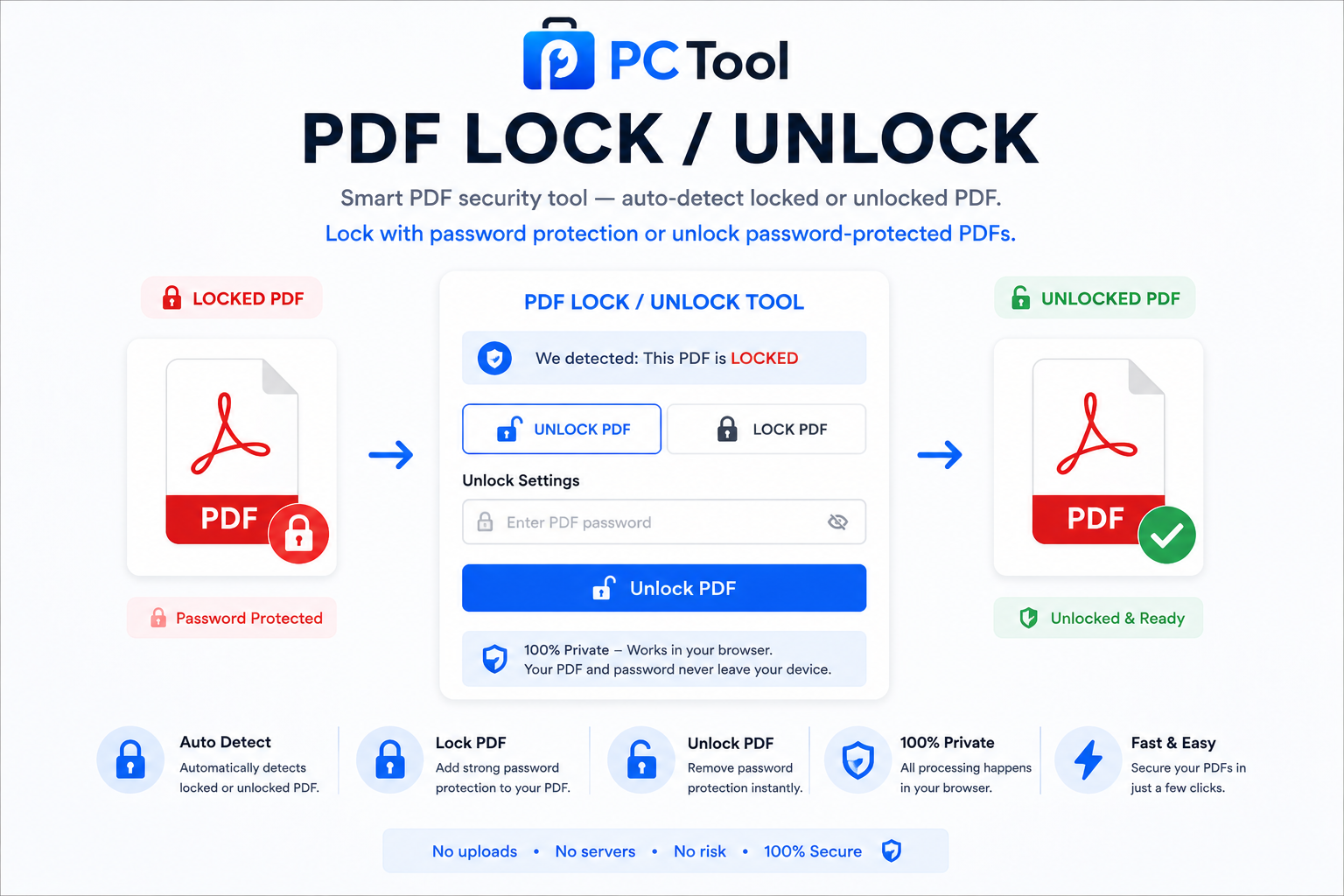
📌 What is PDF Lock Unlock Online Free - Password Protect & Remove PDF Password?
Password protecting a PDF is one of the most important steps when sharing sensitive documents digitally. When you send a salary slip, a legal agreement, a medical report, or a government certificate, a password-locked PDF ensures that only the intended recipient can open and read it. Equally common is the reverse situation — receiving a password-protected PDF from a bank, employer, or government portal and needing to remove the password so the file can be printed, shared further, or uploaded to another portal that does not accept encrypted files.
Our PDF Lock and Unlock tool handles both tasks in a single smart interface. When you upload a PDF, the tool automatically detects whether it is locked or unlocked — no manual mode switching required. If the PDF is unlocked, the lock interface appears so you can set a strong password. If the PDF is already password protected, the unlock interface appears so you can enter the password and remove the encryption.
This is especially useful for documents that Indian users deal with daily. Bank account statements downloaded from net banking portals are almost always password protected with date of birth or account number. ITR acknowledgement PDFs from the Income Tax portal are locked. Salary slips from payroll systems, Form 16, and EPF passbooks are commonly password protected. Our tool lets you unlock these instantly so you can print, merge, or upload them without friction.
All processing happens entirely in your browser. The PDF file and password are never sent to any server, making this completely safe for sensitive financial, medical, and legal documents.
❓ How to Use This Tool
Locking or unlocking a PDF takes less than thirty seconds. Here is the complete process.
Step 1: Upload Your PDF
Click the upload zone or drag and drop your PDF onto the page. The tool immediately analyses the file and auto-detects whether it is password protected or open.
Step 2: Auto-Detection Result
If the PDF is unlocked, the tool shows a preview of the first page and displays the Lock interface — ready for you to set a password. If the PDF is locked, the tool shows the Unlock interface and asks for the password. The file size and page count are shown so you can confirm the right file is selected.
Step 3A: Locking a PDF
Enter your chosen password in the Set Password field, then confirm it in the Confirm Password field. Use a strong password you will remember — a combination of letters, numbers, and symbols is recommended. Click Lock PDF. The tool re-saves the file with AES-256 encryption applied.
Step 3B: Unlocking a PDF
Enter the password in the Enter PDF Password field. For bank statements, this is typically your date of birth in DDMMYYYY format. For ITR acknowledgements, it is your PAN in uppercase followed by date of birth. For salary slips it varies by employer. Click Unlock PDF.
Step 4: Download
Once processed, the result panel shows the output file with its size. Optionally rename the file, then click Download to save the locked or unlocked PDF to your device.
✓ Features & Benefits
- Auto-detects whether PDF is locked or unlocked on upload
- Lock any PDF with AES-256 password encryption
- Unlock password-protected PDFs instantly with the correct password
- Remove restriction-only locks (print or copy disabled) without a password
- Shows file size, page count, and lock status before processing
- Optional file rename before downloading the result
- 100% browser-based — PDF and password never leave your device
- Works on mobile, tablet, and desktop without any app install
- No registration or login required — completely free
- Supports all standard PDFs including multi-page and image-based files
💡 Tips for Best Results
For bank statements from Indian banks, the default password is almost always date of birth in DDMMYYYY format — for example, 15081990 for 15 August 1990. Some banks use DDMMYY (six digits). Try both if the first does not work.
For ITR acknowledgement PDFs downloaded from the Income Tax e-filing portal, the password is PAN number in uppercase followed by date of birth in DDMMYYYY format — for example, ABCDE1234F15081990.
For EPF passbook PDFs, the password is typically the UAN number. For Form 16, check with the employer HR department as the format varies by payroll software.
When locking your own PDFs, use a password you can store safely — a password manager is recommended. Avoid easily guessable information like phone number or name. Once a PDF is locked and the password is forgotten, the file cannot be recovered.
❔ Frequently Asked Questions
How does the tool know if my PDF is locked or unlocked?
When you upload the PDF, the tool checks for encryption markers inside the file structure. If encryption is detected, the Unlock interface appears. If the PDF is open, the Lock interface appears. This happens automatically — you do not need to select a mode manually.
What is the password for my bank statement PDF?
Most Indian banks use date of birth as the default password. Try DDMMYYYY format first — for example, 15081990 for 15 August 1990. Some banks use DDMMYY (six digits). SBI, HDFC, ICICI, Axis, and most other major banks follow this pattern, though the exact format may vary slightly.
What is the password for my ITR acknowledgement PDF?
The password for ITR acknowledgement PDFs from the Income Tax e-filing portal is PAN number in uppercase followed by date of birth in DDMMYYYY format. For example, if PAN is ABCDE1234F and date of birth is 15 August 1990, the password is ABCDE1234F15081990.
Can I unlock a PDF without knowing the password?
No. PDFs with full password protection (open password) cannot be unlocked without the correct password — this is the purpose of encryption. However, PDFs with restriction-only locks — where the file opens freely but printing or copying is disabled — can be unlocked instantly without any password.
What encryption does the tool use for locking?
The tool applies AES-256 encryption, which is the same standard used by banks and government systems. A PDF locked with AES-256 and a strong password is extremely secure and cannot be opened without the correct password.
Is my PDF or password sent to a server?
No. The entire process — both locking and unlocking — runs inside the browser. The PDF file and password you enter are never transmitted to any server. This makes it completely safe for sensitive documents like bank statements, salary slips, medical reports, and legal agreements.
Can I unlock a PDF to merge or compress it later?
Yes. Many PDF tools including our PDF Merge and PDF Compress tools require an unlocked PDF as input. Unlock the password-protected PDF first using this tool, then use it with any other tool without restrictions.
📌 PDF Lock Unlock ऑनलाइन - PDF ला पासवर्ड लावा किंवा काढा काय आहे?
संवेदनशील कागदपत्रे डिजिटल पद्धतीने पाठवताना PDF ला पासवर्ड लावणे अत्यंत महत्त्वाचे आहे. पगाराची slip, कायदेशीर करार, वैद्यकीय अहवाल, किंवा सरकारी प्रमाणपत्र — पासवर्ड-लॉक PDF हे सुनिश्चित करते की फक्त योग्य व्यक्तीच ती उघडू शकते. त्याचबरोबर, बँक, नियोक्ता किंवा सरकारी पोर्टलकडून मिळालेली password-protected PDF उघडण्यासाठी, print करण्यासाठी किंवा दुसऱ्या पोर्टलवर अपलोड करण्यासाठी पासवर्ड काढावा लागतो.
आमचे PDF Lock आणि Unlock टूल दोन्ही कामे एकाच interface मध्ये करते. PDF अपलोड केल्यावर टूल आपोआप detect करते की ती locked आहे की unlocked — वेगळा mode निवडण्याची गरज नाही.
भारतीय वापरकर्त्यांसाठी हे टूल विशेष उपयुक्त आहे. Net banking पोर्टलवरून download केलेले बँक स्टेटमेंट जवळपास नेहमीच जन्मतारखेने lock असते. Income Tax पोर्टलचे ITR acknowledgement PDF lock असते. Salary slip, Form 16, आणि EPF passbook हे सहसा password protected असतात. हे टूल ते सहज unlock करते.
सर्व प्रक्रिया ब्राउझरमध्येच होते. PDF आणि पासवर्ड कधीही कोणत्याही सर्व्हरवर जात नाही.
❓ हे साधन कसे वापरावे
पायरी १: PDF अपलोड करा
अपलोड झोनवर क्लिक करा किंवा PDF ड्रॅग-ड्रॉप करा. टूल लगेच फाइल तपासते आणि locked किंवा unlocked आपोआप detect करते.
पायरी २: Auto-Detection
PDF unlocked असल्यास पहिल्या पानाचा preview आणि Lock interface दिसतो. PDF locked असल्यास Unlock interface दिसतो आणि पासवर्ड मागतो. File size आणि page count दिसतात.
पायरी ३अ: PDF Lock करण्यासाठी
Set Password field मध्ये पासवर्ड टाका, Confirm Password मध्ये पुन्हा टाका. Lock PDF दाबा. PDF AES-256 encryption सह save होते.
पायरी ३ब: PDF Unlock करण्यासाठी
Enter PDF Password field मध्ये पासवर्ड टाका. बँक statement साठी साधारणपणे DDMMYYYY format मधील जन्मतारीख असते. ITR acknowledgement साठी PAN uppercase मध्ये + DDMMYYYY जन्मतारीख. Unlock PDF दाबा.
पायरी ४: Download करा
Result panel मध्ये output file दिसते. हवे तर नाव बदला, नंतर Download दाबा.
✓ वैशिष्ट्ये आणि फायदे
- अपलोड केल्यावर PDF locked की unlocked आपोआप detect
- AES-256 encryption ने PDF lock करा
- Password-protected PDF सहज unlock करा
- Print किंवा copy restriction-only lock बिना पासवर्ड काढा
- File size, page count आणि lock status आधी दिसतो
- Download करण्यापूर्वी file rename करण्याचा पर्याय
- १००% ब्राउझर-आधारित — PDF आणि पासवर्ड सर्व्हरवर जात नाही
- Registration किंवा login नाही — पूर्णपणे मोफत
💡 सर्वोत्तम परिणामांसाठी टिपा
भारतीय बँकांच्या statement PDF साठी default पासवर्ड जवळपास नेहमी DDMMYYYY format मधील जन्मतारीख असतो — उदा. १५ ऑगस्ट १९९० साठी 15081990. काही बँका DDMMYY (सहा अंक) वापरतात. दोन्ही try करा.
Income Tax पोर्टलच्या ITR acknowledgement PDF साठी पासवर्ड म्हणजे uppercase मधील PAN + DDMMYYYY जन्मतारीख — उदा. ABCDE1234F15081990.
EPF passbook PDF साठी UAN number हा पासवर्ड असतो. Form 16 साठी HR department ला विचारा.
स्वतःच्या PDF ला पासवर्ड लावताना password manager मध्ये save करा. फोन नंबर किंवा नाव यांसारखे सहज अंदाज येणारे पासवर्ड टाळा.
❔ वारंवार विचारले जाणारे प्रश्न
टूल PDF locked आहे की नाही हे कसे ओळखते?
PDF अपलोड केल्यावर टूल फाइलमधील encryption markers तपासते. Encryption आढळल्यास Unlock interface दिसतो, नाहीतर Lock interface. हे आपोआप होते — वेगळा mode निवडण्याची गरज नाही.
माझ्या बँक statement PDF चा पासवर्ड काय असतो?
बहुतेक भारतीय बँका जन्मतारीख DDMMYYYY format मध्ये default पासवर्ड म्हणून वापरतात — उदा. 15081990. काही बँका DDMMYY (सहा अंक) वापरतात. SBI, HDFC, ICICI, Axis आणि इतर प्रमुख बँका हेच follow करतात, पण format थोडा वेगळा असू शकतो.
ITR acknowledgement PDF चा पासवर्ड काय असतो?
Income Tax e-filing पोर्टलच्या ITR acknowledgement PDF साठी पासवर्ड म्हणजे uppercase मधील PAN + DDMMYYYY जन्मतारीख. उदा. PAN ABCDE1234F आणि जन्मतारीख १५ ऑगस्ट १९९० असल्यास पासवर्ड ABCDE1234F15081990 असतो.
पासवर्ड माहीत नसताना PDF unlock होतो का?
नाही. Open password असलेली PDF योग्य पासवर्डशिवाय unlock होत नाही — हाच encryption चा उद्देश आहे. मात्र फक्त print किंवा copy restriction असलेल्या PDF (जी उघडते पण print होत नाही) बिना पासवर्ड unlock करता येतात.
Lock केलेली PDF नंतर merge किंवा compress करता येते का?
होय. PDF Merge आणि PDF Compress यांसारख्या tools साठी unlocked PDF लागते. आधी या टूलने PDF unlock करा, मग इतर tools मध्ये वापरा.
माझी PDF किंवा पासवर्ड सर्व्हरवर जातो का?
नाही. Lock आणि Unlock दोन्ही प्रक्रिया ब्राउझरमध्येच होतात. PDF आणि पासवर्ड कोणत्याही सर्व्हरवर पाठवले जात नाहीत — बँक स्टेटमेंट, salary slip, वैद्यकीय अहवाल यांसाठी संपूर्ण privacy.