📌 What is Increase Image File Size Online Free - Make Image Bigger in KB or MB?
Increasing image file size is the opposite of compression — instead of making a file smaller, you need to make it larger to meet a minimum file size requirement. This is a surprisingly common need that catches many people off guard. While most online tools focus on reducing image size, there are numerous real-world situations where your image is too small and needs to be bigger before you can submit it.
Government portals, job application forms, college admission systems, and document verification platforms frequently specify a file size range rather than just a maximum. For example, a portal might say "photo must be between 100 KB and 500 KB" or "document scan must be at least 200 KB." If your image is only 45 KB, it will be rejected even if the dimensions and format are correct. This leaves many applicants confused and frustrated, repeatedly scanning or re-photographing documents trying to get the size right.
Other common scenarios include email systems that reject attachments below a certain size, banking and insurance portals that require scanned documents above a minimum threshold, HR systems that validate photo file sizes during job applications, and university admission portals that specify minimum sizes for uploaded certificates and mark sheets.
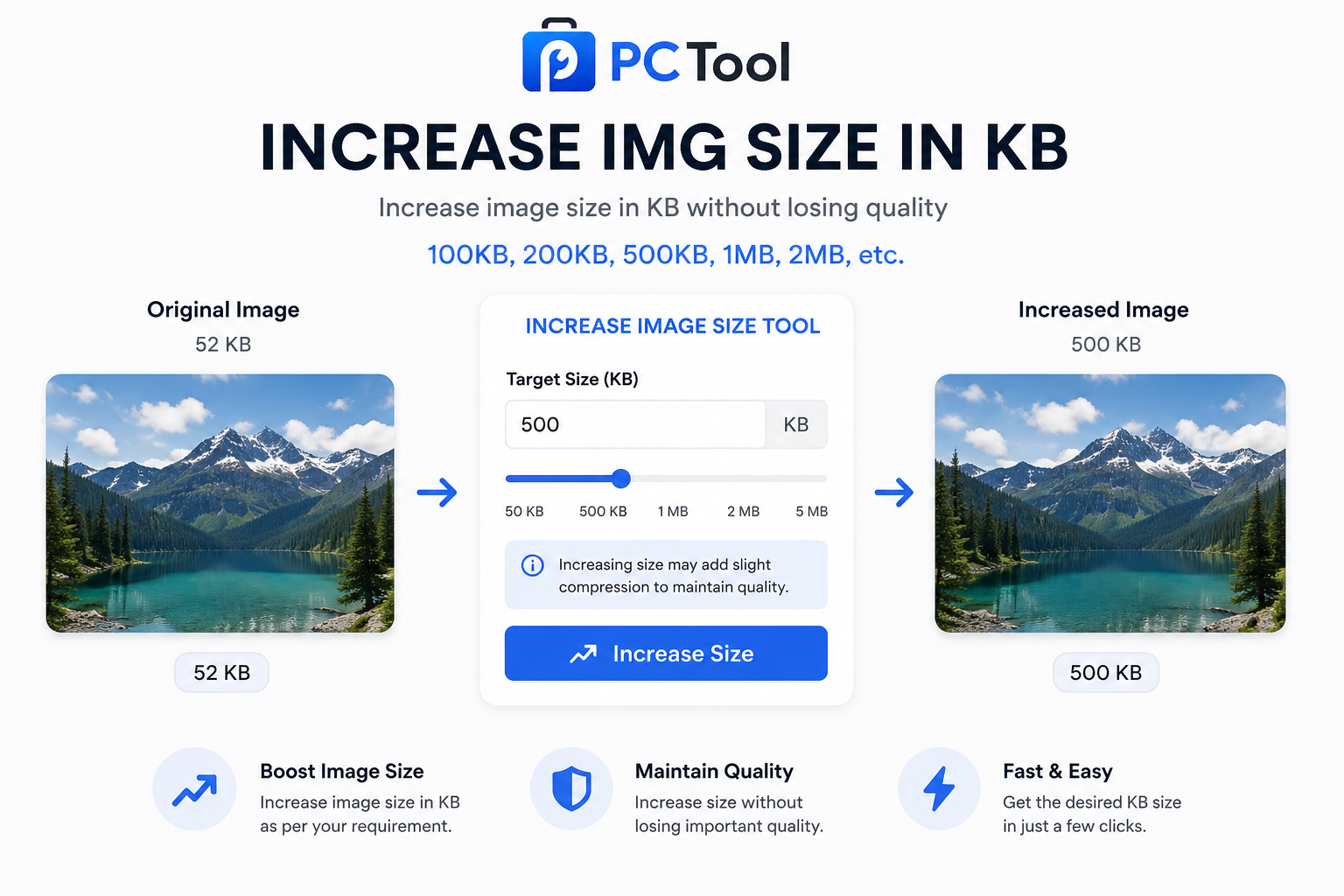
Our Increase Image Size tool solves this problem directly. You enter your target size in KB or MB, select up to 10 images, and the tool automatically adjusts each image to meet or exceed your target. For JPEG and WebP images, it maximizes encoding quality and upscales dimensions if needed. For PNG images, which do not support quality adjustment, it intelligently upscales dimensions to reach the target. If natural encoding still cannot reach the specified size, the tool adds safe metadata padding to ensure the final file is exactly at or above the target — guaranteed, every time.
❓ How to Use This Tool
Getting your image to the right file size takes just a few steps with our tool.
Step 1: Upload Your Images
Click the upload zone or drag and drop your images onto the page. You can upload up to 10 images at once in JPG, PNG, WebP, BMP, or GIF format, each up to 20 MB. Once uploaded, a carousel displays your images with their current file sizes visible, so you can confirm how much each one needs to increase.
Step 2: Set Your Target Size
Enter the minimum file size required by the portal or form in the KB or MB field. For convenience, quick-select preset buttons are available for the most common requirements — 50 KB, 100 KB, 200 KB, 300 KB, 500 KB, 1 MB, 2 MB, and 5 MB. You can also type any custom value. The target display updates in real time to show you what the output size will be. Note that the tool only increases file size — if your target is smaller than the current file, use our Compress Image tool instead.
Step 3: Choose Output Format (Optional)
By default, each image is saved in its original format. Optionally switch to JPEG, JPG, PNG, or WebP. Choosing JPEG or JPG gives you the most flexibility for meeting size targets since quality encoding can be maximized. PNG is ideal when transparency must be preserved.
Step 4: Increase and Download
Click "Increase and Download." The tool processes all uploaded images simultaneously, showing a real-time progress bar. For a single image, download it directly with an optional rename. For multiple images, download each file individually from the results list or click "Download All as ZIP" to get everything in one file.
All processing runs entirely inside your browser. Your images are never uploaded to any server, so there is no waiting for network transfers and your files remain completely private.
✓ Features & Benefits
- Increase image file size to any target in KB or MB
- Quick preset buttons: 50 KB, 100 KB, 200 KB, 500 KB, 1 MB, 2 MB, 5 MB
- Batch process up to 10 images simultaneously
- Download individually or as a ZIP archive
- Supports JPG, PNG, WebP, BMP, GIF up to 20 MB each
- Output as JPEG, JPG, PNG, WebP, or original format
- Guaranteed to meet or exceed your target size
- 100% browser-based — images never uploaded to any server
- Works on mobile, tablet, and desktop without any app install
- No registration or login required — completely free
💡 Tips for Best Results
Always read the exact file size requirement carefully before using the tool. Some portals specify a range such as "between 100 KB and 500 KB" — in that case, set your target to somewhere in the middle like 200 KB to give yourself a safe margin on both ends.
If you are increasing size for a scanned document or certificate, PNG format is the best choice as it preserves sharpness and text clarity without introducing JPEG compression artifacts. For photos and portraits, JPEG or WebP will reach your target size more naturally by maximizing encoding quality rather than upscaling dimensions.
After downloading, always verify the file size in your device file manager before submitting to the portal. Right-click the file and check Properties on Windows, or Get Info on Mac, to confirm the exact KB value.
❔ Frequently Asked Questions
Why would I need to increase an image file size?
Many government portals, job application systems, banking platforms, and college admission forms require images or scanned documents to be above a minimum file size — for example, "photo must be between 100 KB and 500 KB." If your image is below the minimum, the portal rejects the upload even if the dimensions and format are correct. This tool lets you meet that minimum requirement instantly.
How does the tool increase file size without reducing quality?
For JPEG and WebP images, the tool encodes at maximum quality, which naturally produces larger files. If encoding alone cannot reach the target, dimensions are slightly upscaled. For PNG images, which do not have an adjustable quality setting, dimensions are upscaled to increase size. If natural methods still cannot reach the exact target, safe metadata padding is added to guarantee the final file meets or exceeds your specified size.
Does increasing file size damage image quality?
No. Since the tool encodes at maximum quality rather than reducing quality, the visual output is the same or slightly sharper than the original. Dimension upscaling is minimal and uses high-quality interpolation. The image will look identical or better when viewed normally.
Can I process multiple images at once?
Yes. Upload up to 10 images in a single session. The same target size is applied to all images. Download each file individually from the results panel or use the Download All as ZIP button to get everything at once.
What if my image is already larger than the target?
This tool only increases file size. If your image is already at or above the target, the tool will indicate this. To reduce file size, use our Compress Image tool which can bring any image down to a specific KB or MB target with equal precision.
Are my images uploaded to a server?
No. All processing happens entirely inside your browser using JavaScript. Your images are never sent to any server, ensuring complete privacy. The tool also works offline once the page has fully loaded.
What is the maximum file size I can upload?
Each image can be up to 20 MB. You can upload up to 10 images per session. There is no limit on how many sessions you run — simply use the Increase Another option to process a new batch.
📌 इमेज फाईल साइज वाढवा ऑनलाइन - KB किंवा MB मध्ये इमेज मोठी करा काय आहे?
इमेज फाईल साइज वाढवणे म्हणजे compression च्या उलट — फाईल लहान करण्याऐवजी ती मोठी करणे. हे अनेकांना आश्चर्यचकित करणारी गरज आहे, पण सरकारी पोर्टल, नोकरी अर्ज, कॉलेज प्रवेश आणि बँकिंग प्लॅटफॉर्मवर हे वारंवार होते.
अनेक पोर्टल्स फाईल साइजची एक range सांगतात जसे "फोटो १०० KB ते ५०० KB च्या दरम्यान असावा" किंवा "स्कॅन किमान २०० KB असावा." तुमचा फोटो ४५ KB असेल तर आकारमान आणि फॉरमॅट बरोबर असले तरी पोर्टल नाकारते. यामुळे अनेक अर्जदार वारंवार फोटो काढत राहतात.
आमचे Increase Image Size टूल हे थेट सोडवते. KB किंवा MB मध्ये target टाका, एकावेळी १० इमेजेस अपलोड करा, आणि टूल प्रत्येक इमेज आपोआप target पर्यंत वाढवते. JPEG आणि WebP साठी encoding quality maximize केली जाते. PNG साठी dimensions upscale केले जातात. गरज पडल्यास safe metadata padding जोडले जाते जेणेकरून final फाईल नेहमी target पूर्ण करते.
❓ हे साधन कसे वापरावे
पायरी १: इमेजेस अपलोड करा
अपलोड झोनवर क्लिक करा किंवा फोटो ड्रॅग-ड्रॉप करा. JPG, PNG, WebP, BMP, GIF फॉरमॅट सपोर्ट, प्रत्येकी जास्तीत जास्त २० MB, एकावेळी १० इमेजेस.
पायरी २: Target Size सेट करा
KB किंवा MB फील्डमध्ये हवा तो आकार टाका. Quick preset बटणे उपलब्ध आहेत — ५० KB, १०० KB, २०० KB, ५०० KB, १ MB, २ MB, ५ MB. पोर्टलने range दिली असल्यास मध्यभागी target ठेवा.
पायरी ३: Output Format निवडा (ऐच्छिक)
JPEG, JPG, PNG किंवा WebP निवडा. काहीही न निवडल्यास मूळ फॉरमॅट राहतो.
पायरी ४: Increase करा आणि डाउनलोड करा
"Increase and Download" दाबा. Real-time progress bar दाखवेल. एक इमेज असल्यास थेट डाउनलोड करा. अनेक इमेजेस असल्यास प्रत्येक स्वतंत्रपणे किंवा ZIP म्हणून डाउनलोड करा.
✓ वैशिष्ट्ये आणि फायदे
- KB किंवा MB मध्ये target size सेट करा
- Quick preset: ५० KB, १०० KB, ५०० KB, १ MB, २ MB, ५ MB
- एकावेळी १० इमेजेस batch process
- ZIP डाउनलोड सुविधा
- JPG, PNG, WebP, BMP, GIF सपोर्ट
- Target size guaranteed — नेहमी पूर्ण होते
- १००% ब्राउझर-आधारित — सर्व्हरवर अपलोड नाही
- मोबाइल आणि डेस्कटॉपवर काम करते
💡 सर्वोत्तम परिणामांसाठी टिपा
पोर्टलची अचूक range आधी वाचा. "१०० KB ते ५०० KB" असल्यास २०० KB target ठेवा — दोन्ही बाजूंनी सुरक्षित राहाल. स्कॅन केलेल्या दस्तऐवजांसाठी PNG फॉरमॅट वापरा — मजकूर आणि तीक्ष्णता टिकून राहते. डाउनलोड केल्यानंतर पोर्टलवर सादर करण्यापूर्वी फाईल साइज तपासा.
❔ वारंवार विचारले जाणारे प्रश्न
इमेज फाईल साइज का वाढवावी लागते?
अनेक सरकारी पोर्टल, बँकिंग प्लॅटफॉर्म आणि कॉलेज प्रवेश प्रणाली किमान फाईल साइज सांगतात. तुमचा फोटो त्यापेक्षा लहान असल्यास अपलोड नाकारला जातो. हे टूल तो target पूर्ण करण्यास मदत करते.
गुणवत्ता न घालवता साइज कसा वाढतो?
JPEG आणि WebP साठी maximum quality encoding वापरले जाते. PNG साठी dimensions upscale केले जातात. गरज पडल्यास safe metadata padding जोडले जाते. निकाल नेहमी target पूर्ण करतो.
एकापेक्षा जास्त इमेजेस एकाच वेळी करता येतात का?
होय. एकावेळी १० इमेजेस अपलोड करा. सर्वांना एकच target size लागू होतो. प्रत्येक स्वतंत्रपणे किंवा ZIP म्हणून डाउनलोड करा.
माझा फोटो आधीच target पेक्षा मोठा असेल तर?
हे टूल फक्त साइज वाढवते. फाईल लहान करण्यासाठी आमचे Compress Image टूल वापरा.
फोटो सर्व्हरवर जातो का?
नाही. सर्व प्रक्रिया तुमच्या ब्राउझरमध्येच होते. कोणताही फोटो कोणत्याही सर्व्हरवर पाठवला जात नाही.